Add a video
Intro to Your Template
In this lesson I’m going to show you how you can easily access your template once it's transferred to you, and how to navigate your Squarespace dashboard so you can edit your website.
Step One: Once your website has been transferred to you, you’ll receive a notification in the email your used for purchase.
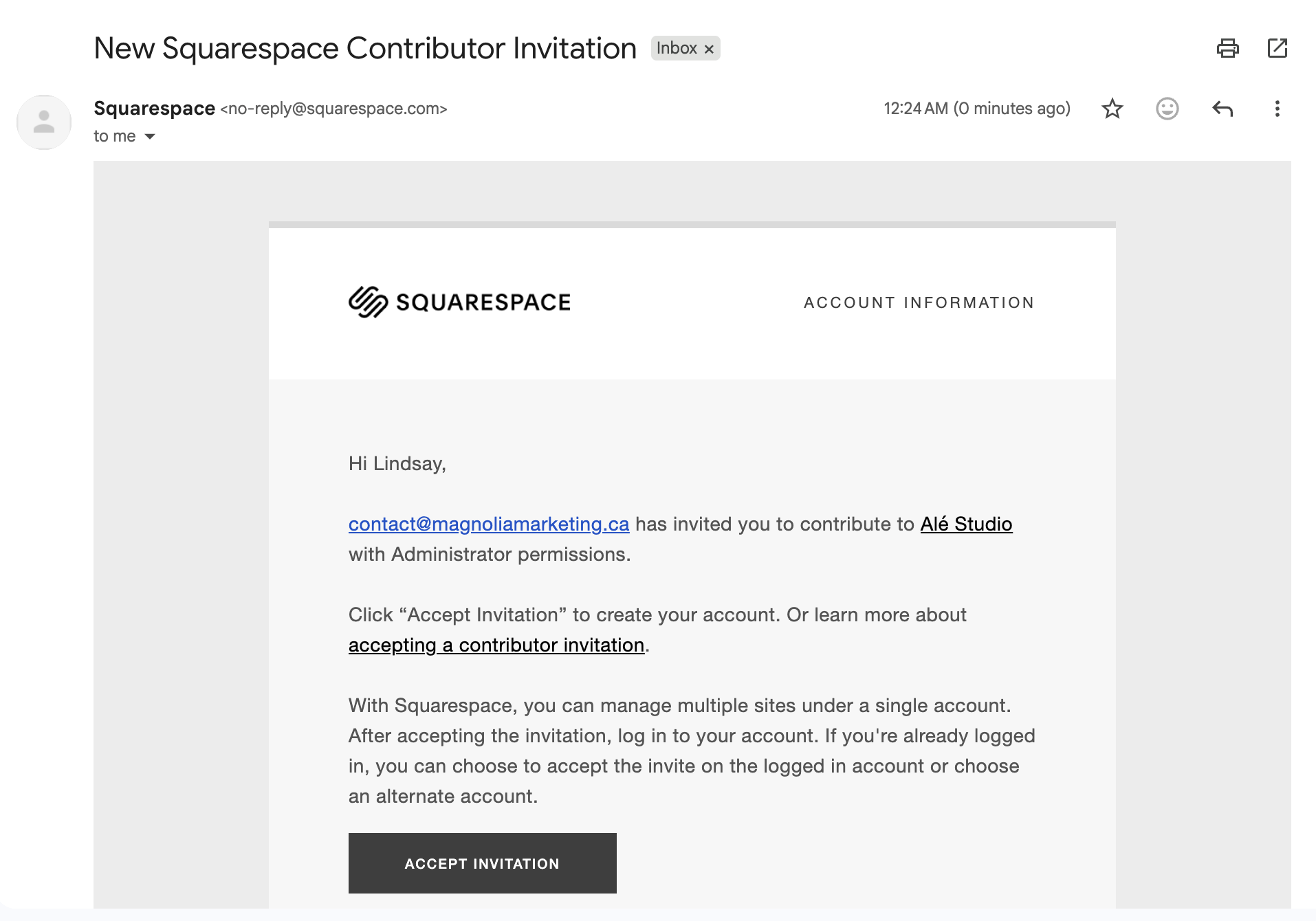
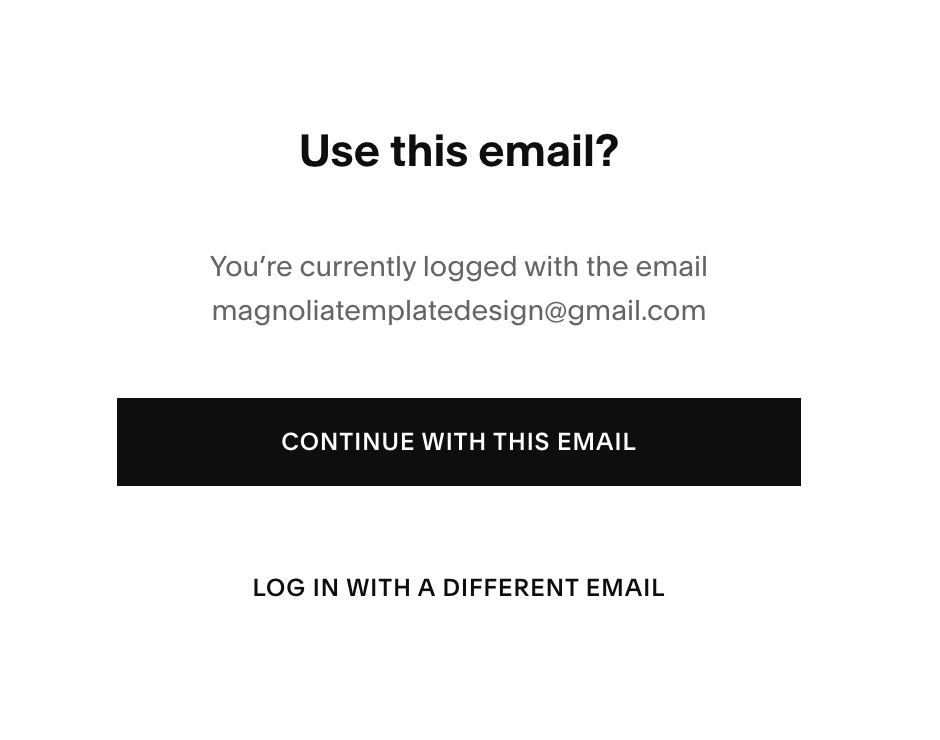
Step Two: Select ‘Continue with This Email’
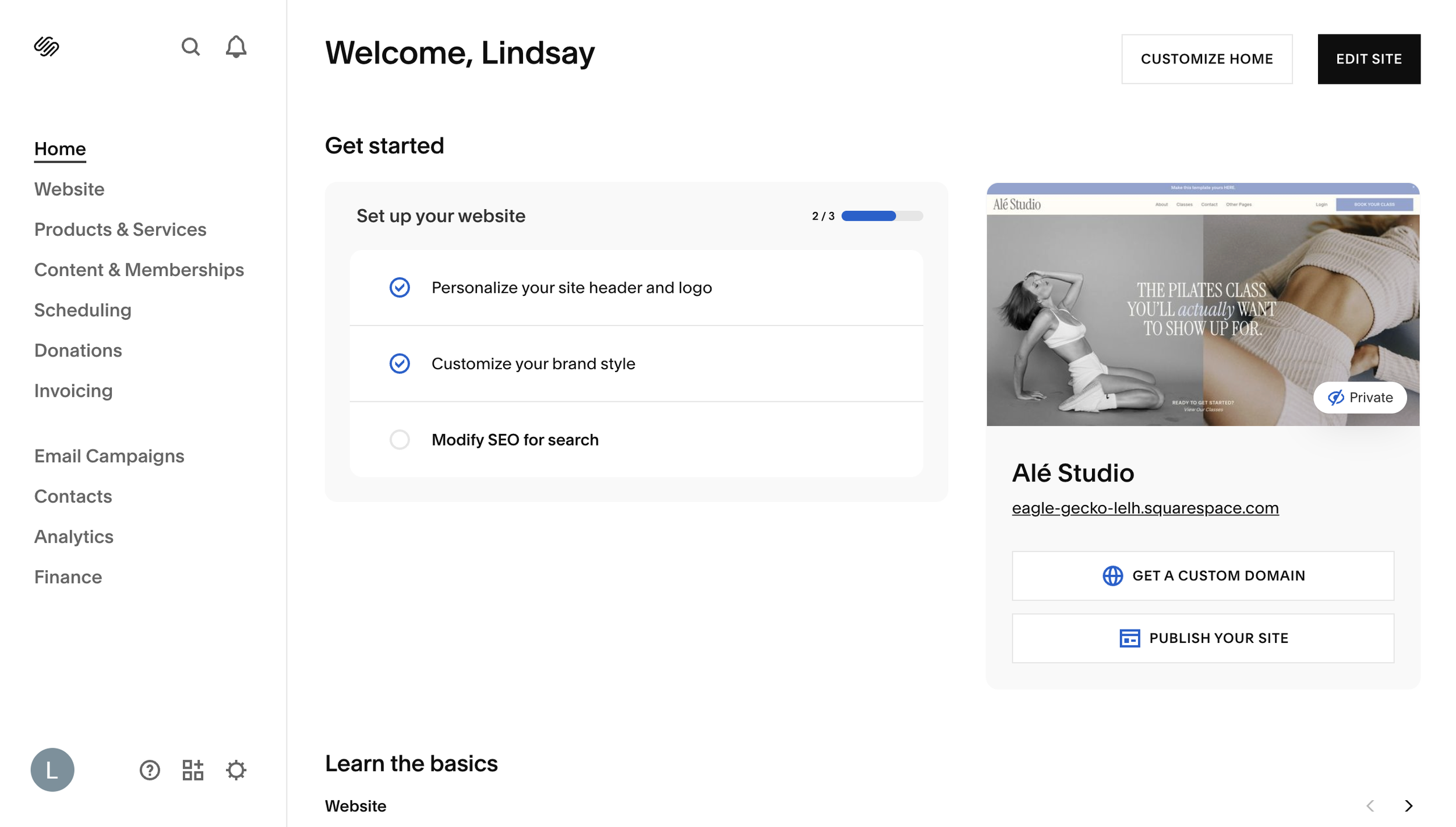
Step Three: After you’ve accepted your Site invite, you’ll be taken to your sites central hub!
The Home Hub essentially a command center for your website. It gives you quick access to the most important parts of your site without needing to dig through menus. From here you can do things like:
Edit you website pages
Get a domain
Publish your site
Easily access your analytics
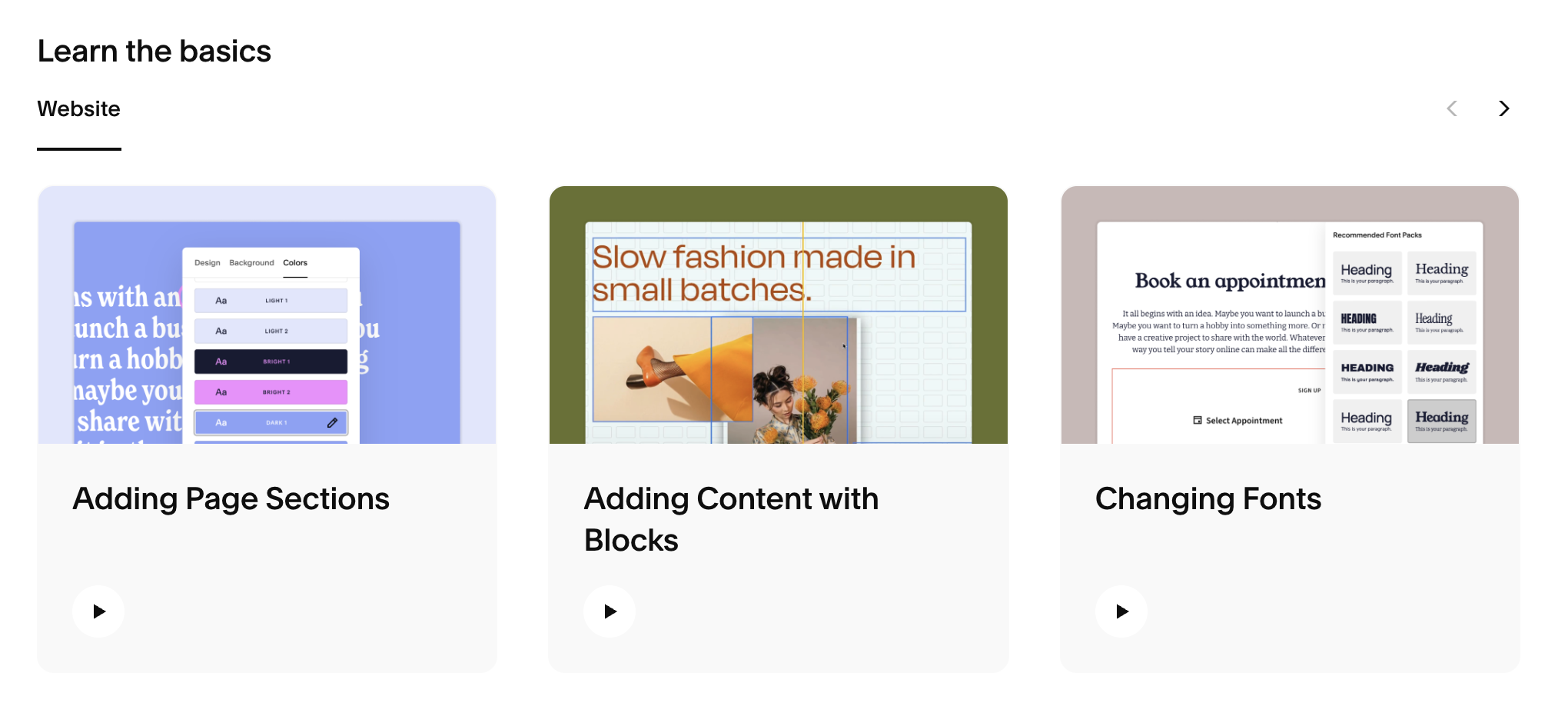
Get access to Squarespace tutorials
You can navigate back to this page any time by selecting ‘Home’ from your pages panel.
To be able to access your website once you’ve exited out of it, all you have to do is sign into your Squarespace account with your email (the same one you used to access your template) and password.
When you log in to Squarespace, the first screen you see is your Account Dashboard.
This area shows all the sites you manage, your domains, and important tools and insights in one place. You can use this dashboard to quickly jump into any site you’re working on and manage everything related to that site.
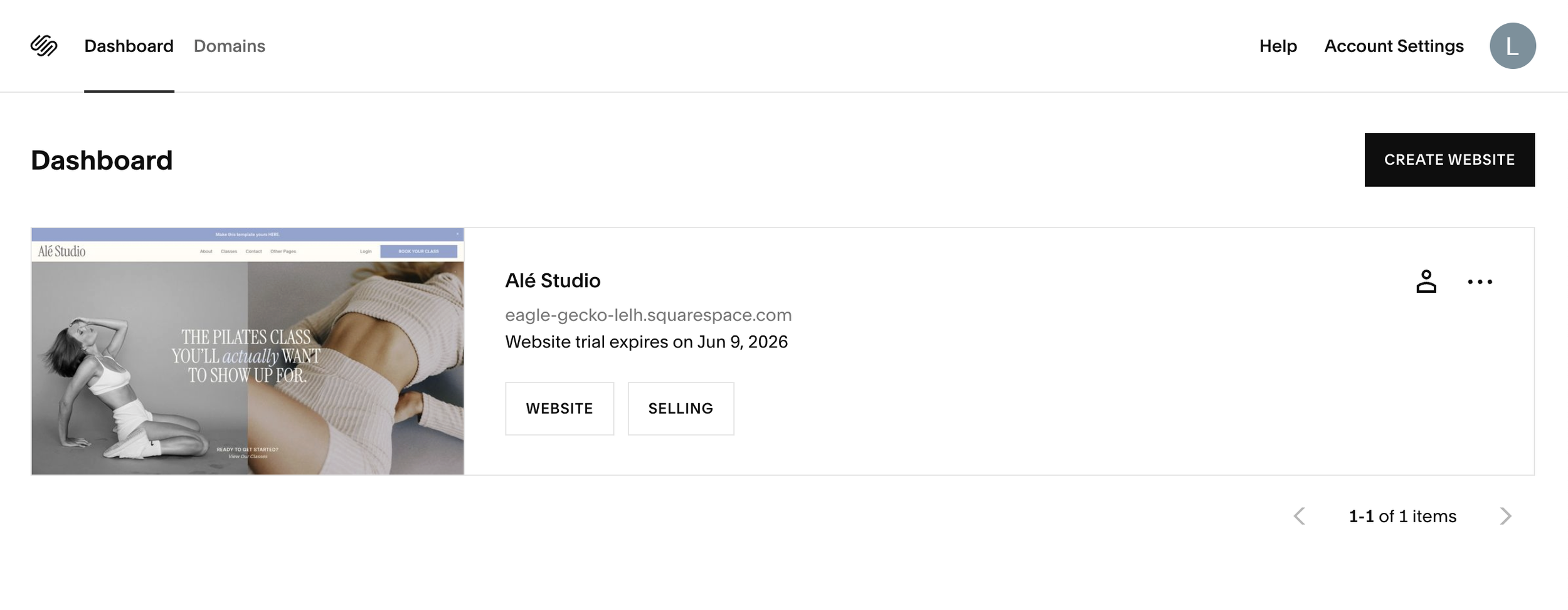
From your dashboard, on each website you’ll have quick access to the following:
Permissions: manage who has access to your website and white roles they’re assigned
Billing: You can manage your website subscription, payment settings, and invoices
Settings: Quick access to all the settings of your website where you can manage every part of your website.
Duplicate Your Website: Make a copy of a website (Helpful tip: This is a great option when working off of your template! you can make a copy of the original to look back at in case you make changes you didn’t want to make.)
Remove Me: This option appears if you are not the owner of a website (e.g. an Admin or Contributor). It removes you from that site entirely
Delete: Delete the website.
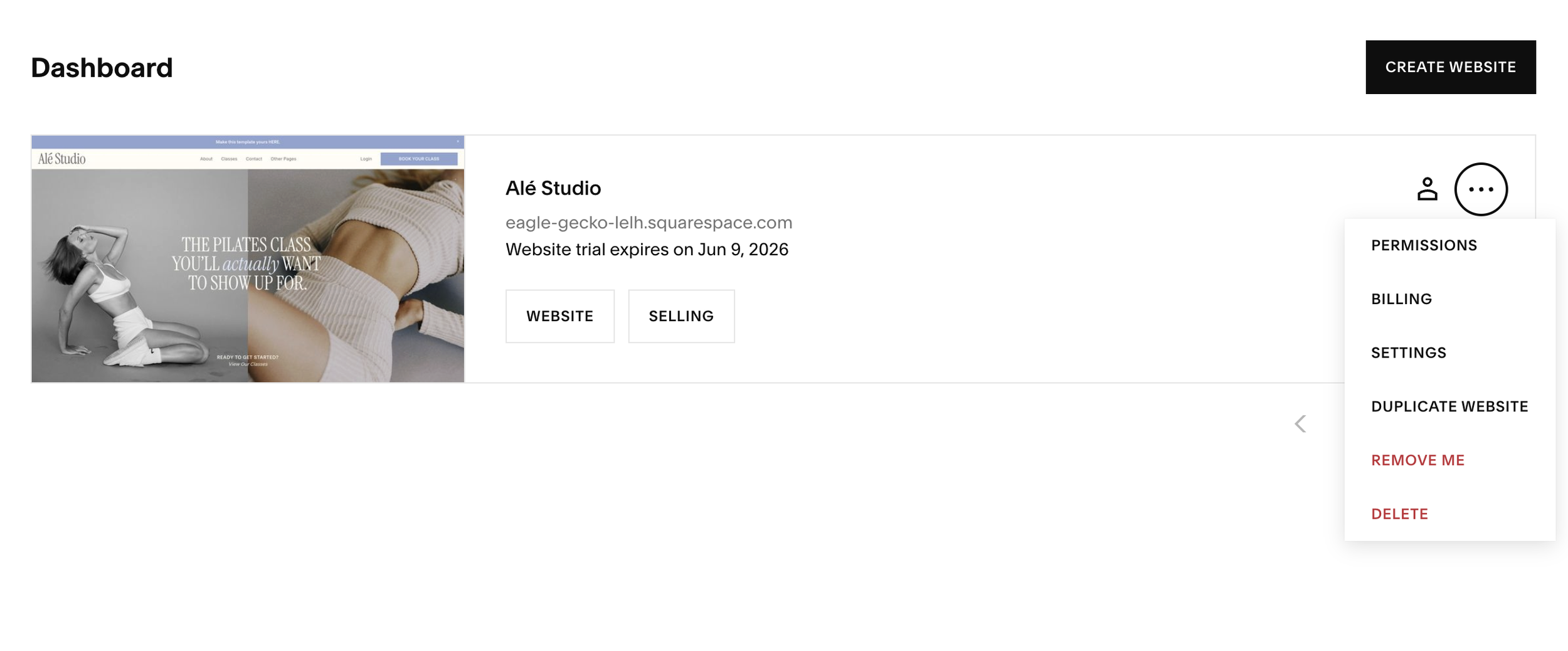
If you’d like to remove an admin (including me), you can do so at any point:
Open your site and go to Settings (or click the ‘…’ next to your site in your dashboard).
Click Permissions.
Find the admin you want to remove in the list of contributors.
Click the three dots next to their name.
Select Remove and confirm.
Once removed, that person will no longer have access to your site.
A quick note about template licenses:Duplicating your site for reference or backup purposes is absolutely okay and can be really helpful as you customize your template. I just want to gently note that each template purchase includes one license, which is intended for one live website.
That means the template can’t be shared with others or used to launch multiple live sites. Any duplicated versions should be kept as backups or reference points rather than published sites.
If you’d like to create an additional live website using the same template a separate license is needed.