Editing Your Template
Squarespace 7.1 includes built-in support for an Instagram feed block that pulls your latest posts once your account is connected to your site Showing your Instagram posts directly on your website can be great way to direct your website traffic to your social media, or offer your visitors a snapshot of that kind of value they can expect from your Instagram account.
Connect Your Instagram Account:
Helpful Tip: If you’ve just come from the ‘Adding Social Links” lesson and already connected your Instagram to your website, you can skip this step!
Before you can display your live Instagram feed on a page, you’ll need to connect your Instagram account to your Squarespace site. This lets Squarespace access your posts and keep them updated.
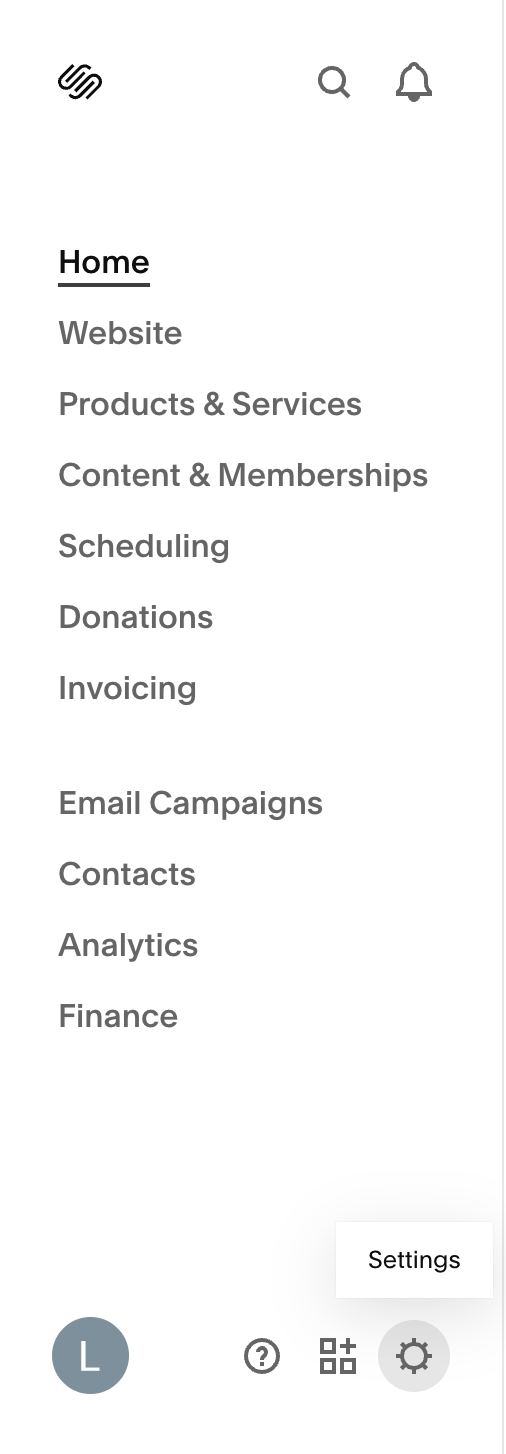
In your sidebar , click Settings (the gear icon at the bottom of the panel)
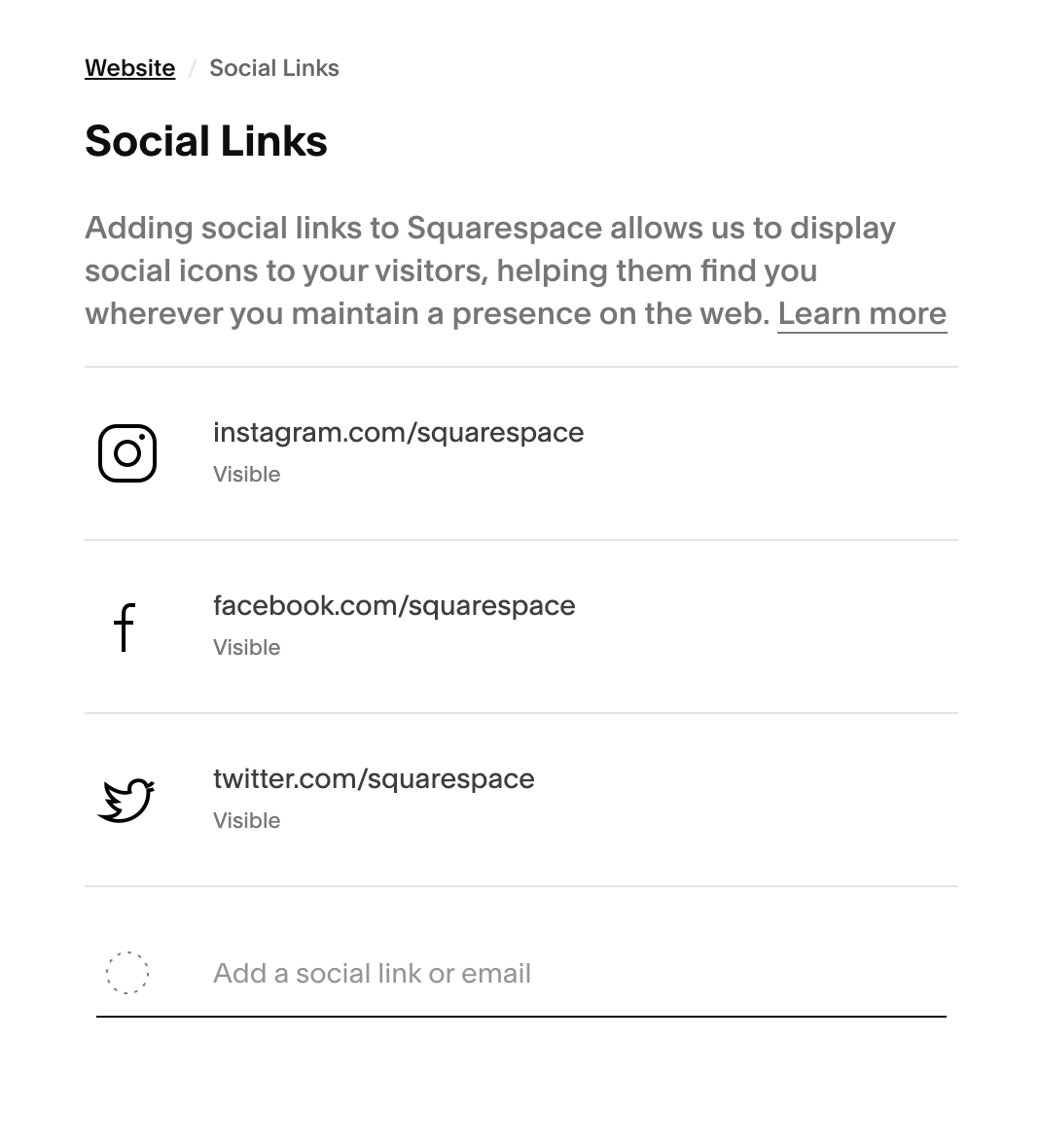
Choose Website > Social Links
Paste the full profile URL (e.g.,
https://instagram.com/yourname) in the “Add a social link or email” section.After connecting, you’ll see your Instagram profile listed under your Connected Accounts.
IMPORTANT: Make sure your Instagram account is public— private accounts cannot display a public feed on your site.
Adding Your Instagram Feed to a Page:
Now that your Instagram account is connected, you can add your live feed to any page using the Instagram block.
To do this:Go to the Pages panel and open the page where you want your feed to appear (such as your Home page or a dedicated social page).
Click Edit on that page.
Hover over the area where you want your feed and click the + “Add Block” button.
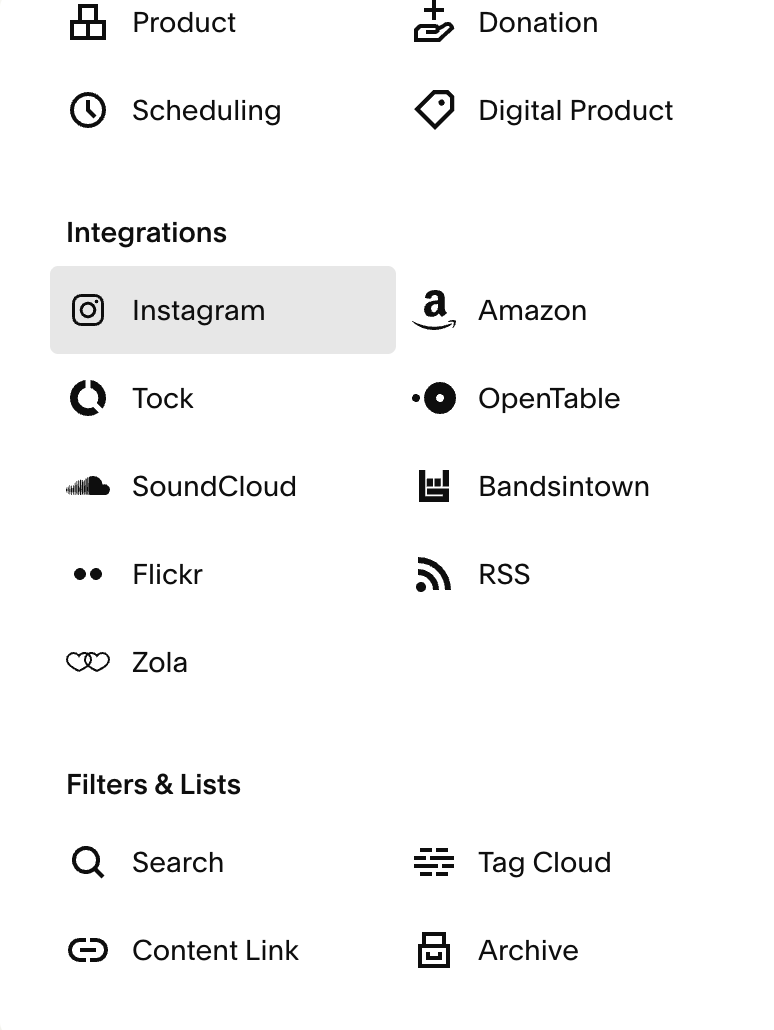
In the block menu, scroll to Integrations and select Instagram.
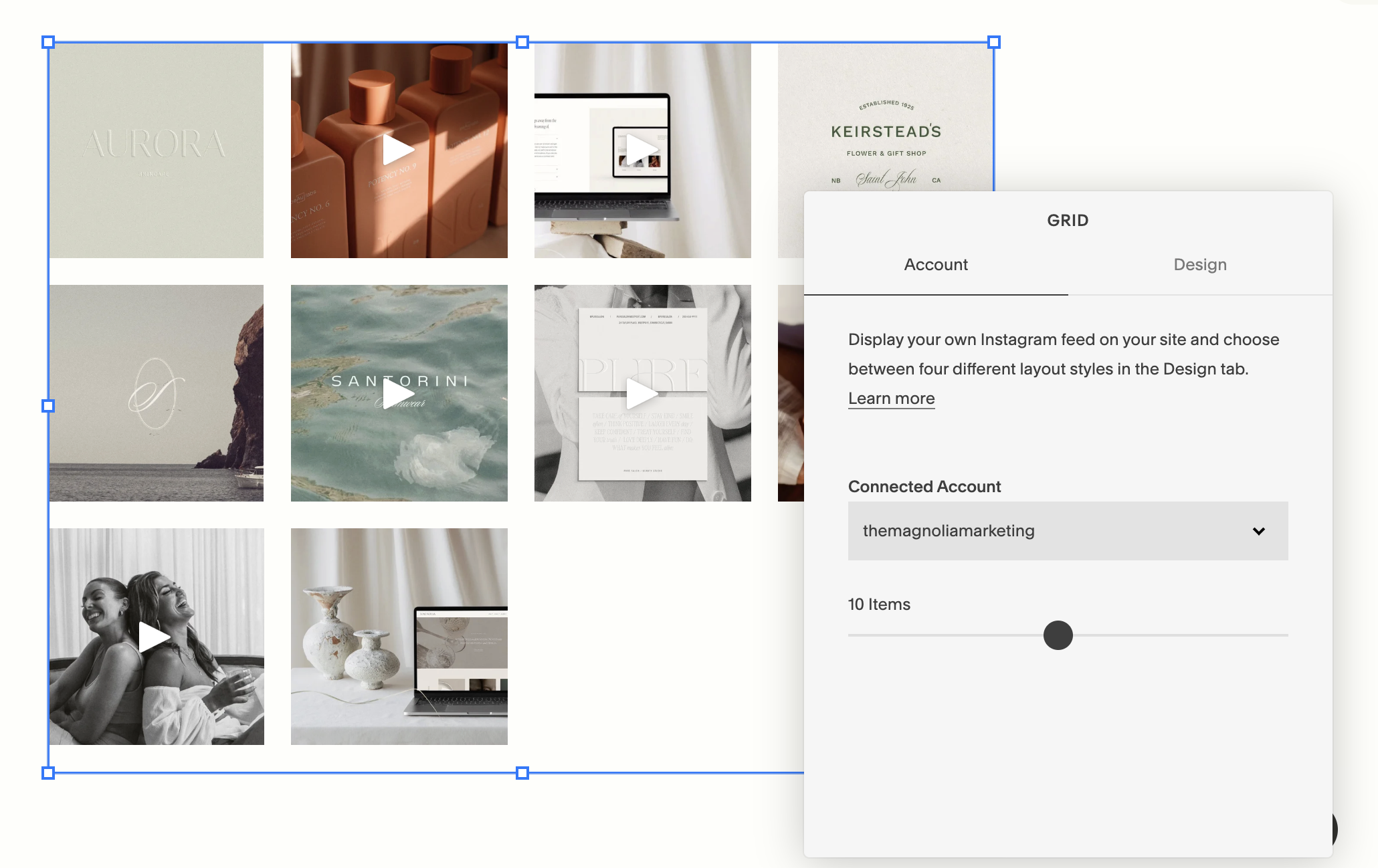
If prompted, choose your connected Instagram account.
Your latest posts will automatically pull into the block and update in real time as you post.
→
Customize How Your Instagram Feed Looks:
Once your Instagram feed is on the page, you can adjust your settings to control:
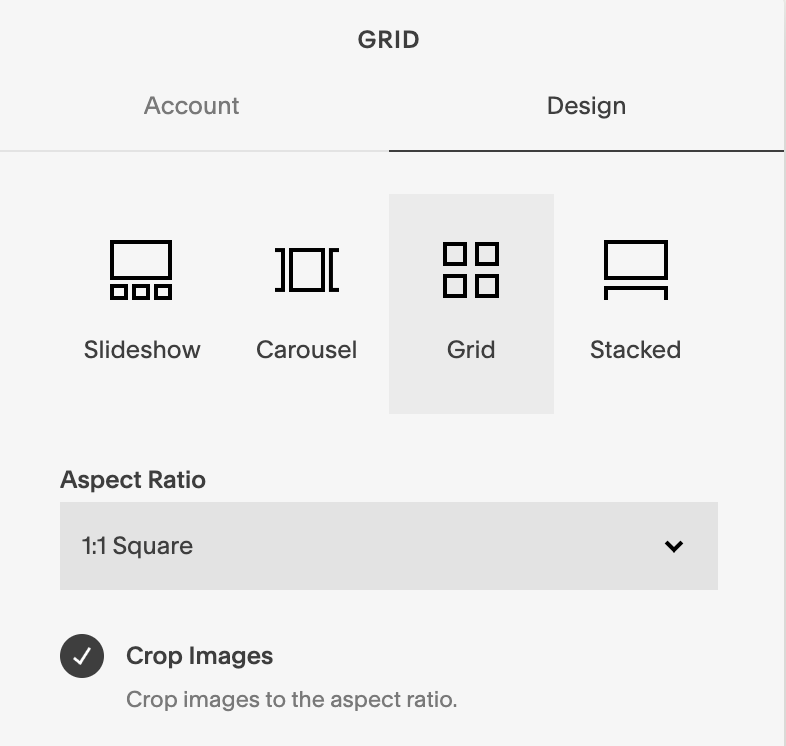
Layout: Choose how your Instagram posts are arranged
Slideshow
Carousel
Grid
Stacked
Aspect Ratio: Choose how your instagram posts will be cropped. You can choose from:
1:1 Square
3:2 Standard
2:3 Standard (Vertical)
4:3 Four-Three
3:4 Three-Four (Vertical)
16:9 Widescreen
2.40 Anamorphic Widescreen
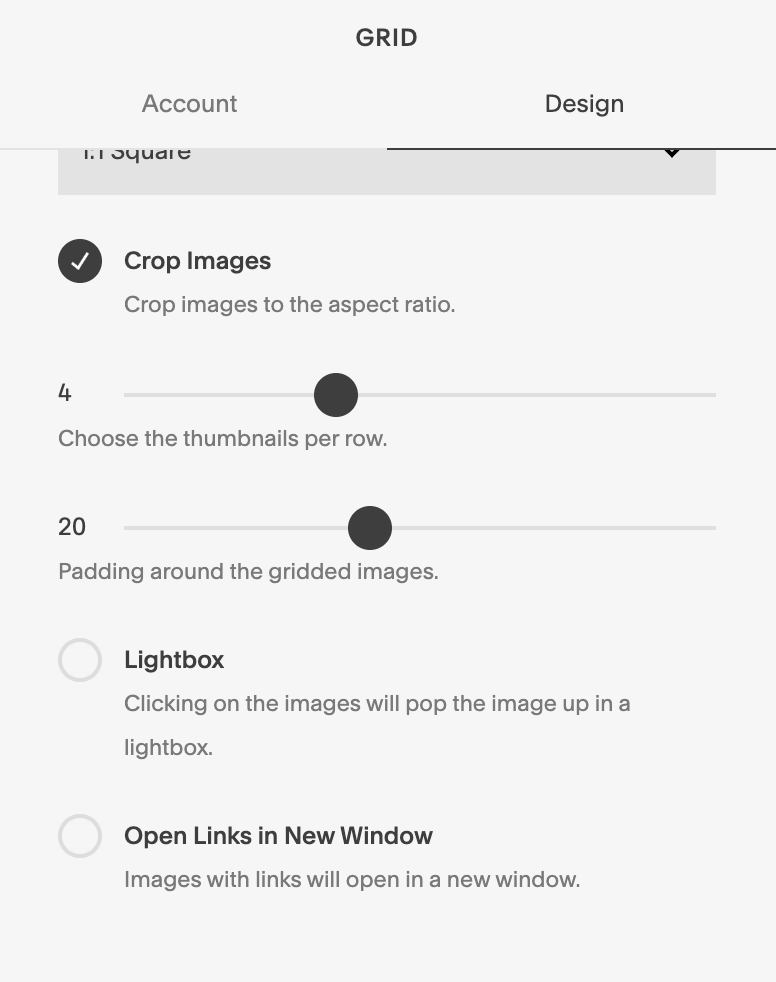
Number of posts: Decide how many recent posts you want visitors to see.
Padding: You can adjust the spacing between images to your presence (note: you cannot adjust the column and row padding independently, you can only choose equidistant padding around each post).
Lightbox: If your user clicks on an image, it will pop up in a Lightbox window.
Open Links in New Window: When your user clicks on a post it will take them directly to your Instagram feed in a new page.
Helpful Tip: I always recommend having this option selected, because it keeps visitors from loosing their place on your website!
After you’re done styling, click Save to publish the changes to your live site.
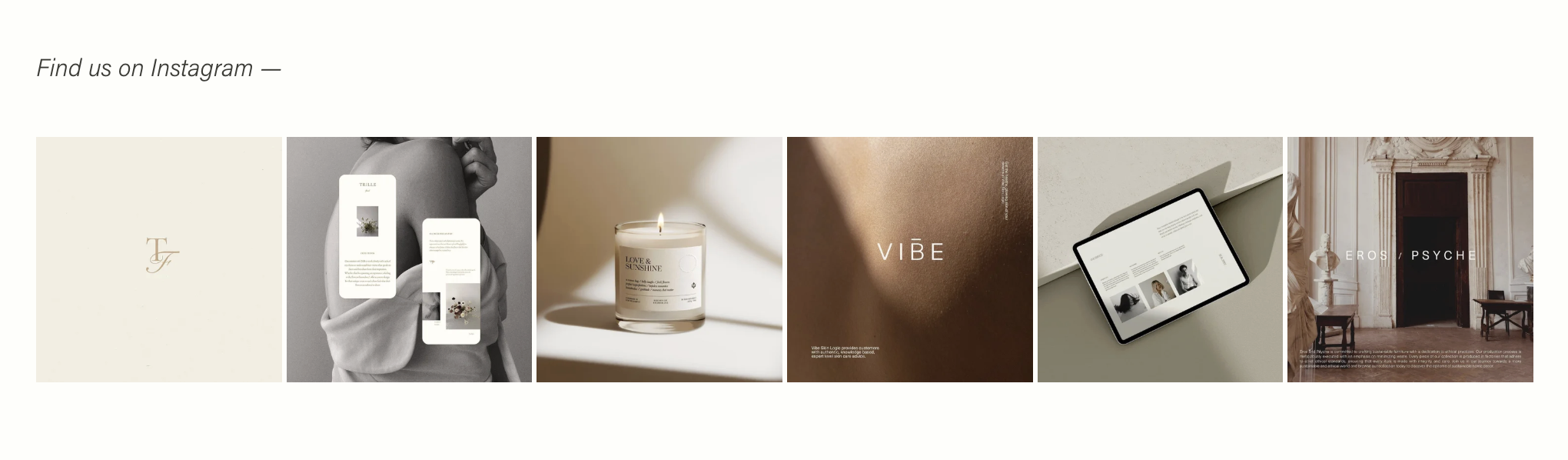
Example:
What to Do If Your Instagram Feed Isn’t Updating:
Instagram feeds sometimes fail to update on Squarespace due to connection issues or token refresh requirements. If you run into this issue, it can usually be fixed by doing the following:
Return to Settings → Social Links.
Delete your Instagram account from the list and re-add it.
Refresh your page.
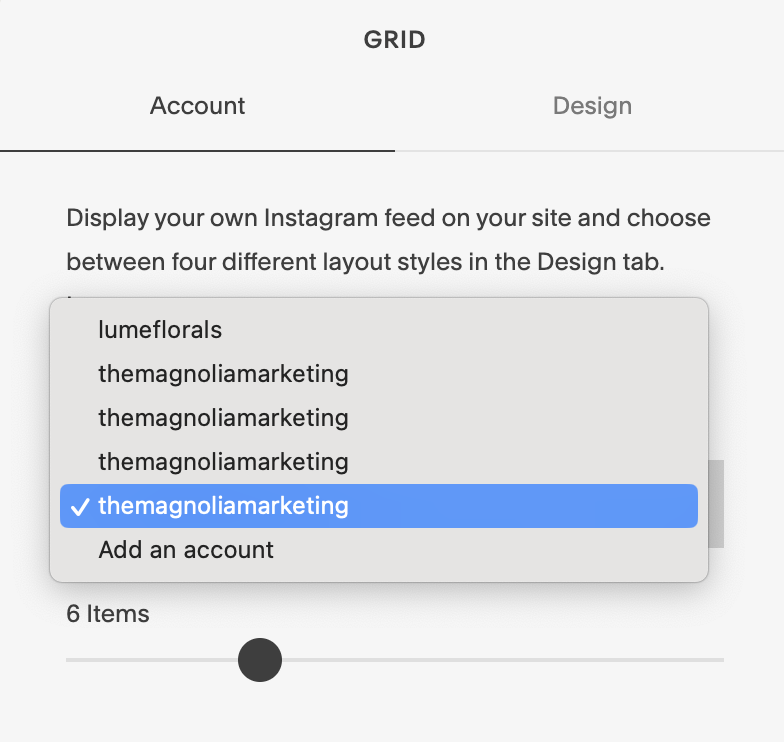
If you feed still isn’t updating, go to your Instagram block, and reselect your account from the Connected Accounts drop down
If You Still Don’t See Your Account Listed:
If you don’t see your Instagram account listed under the connected account dropdown, you can manually connect your Instagram.
Manually adding your Instagram Feed:Log into your Instagram account on your desktop browser (if you’re not already logged in)
Select ‘Add Account’ from the Connected Accounts dropdown on your Squarespace site.
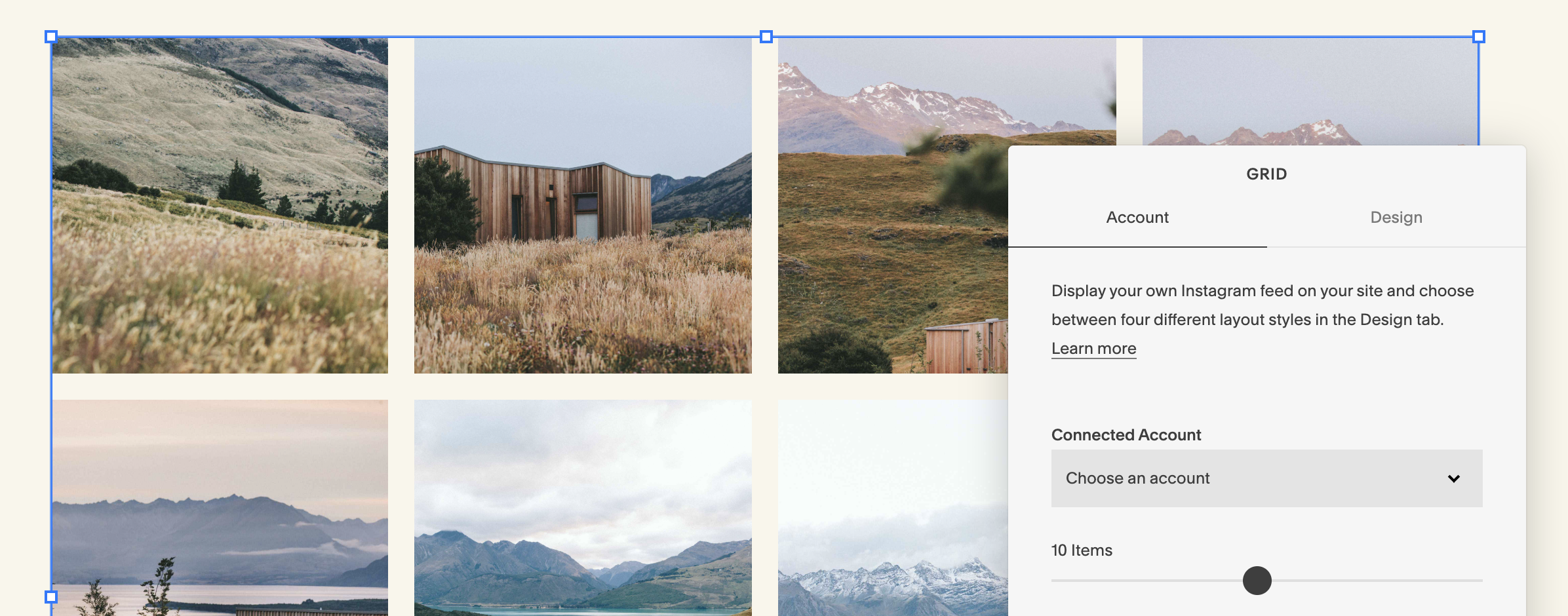
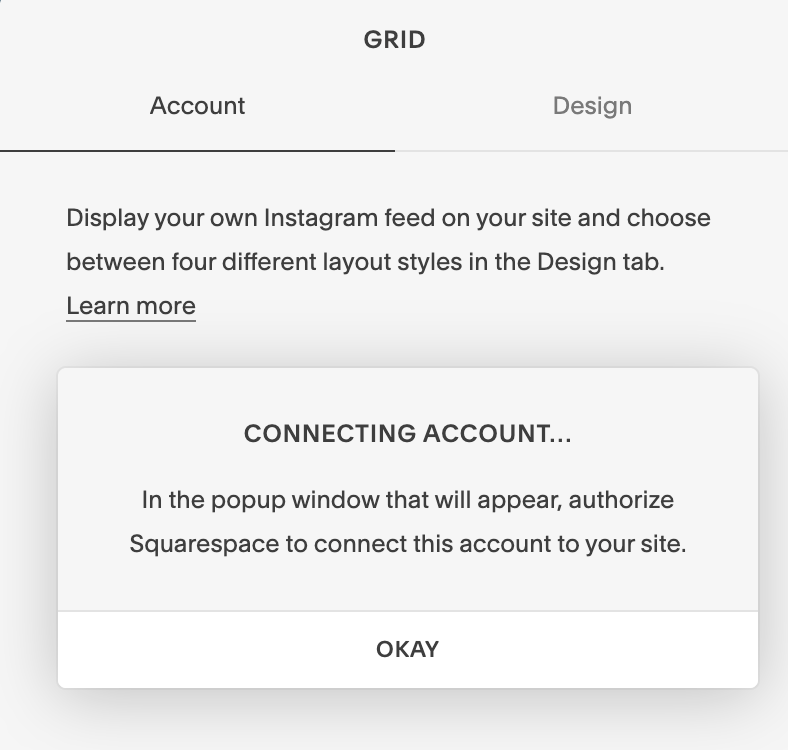
Click ‘Okay’ on the ‘Connecting Account…’ Window
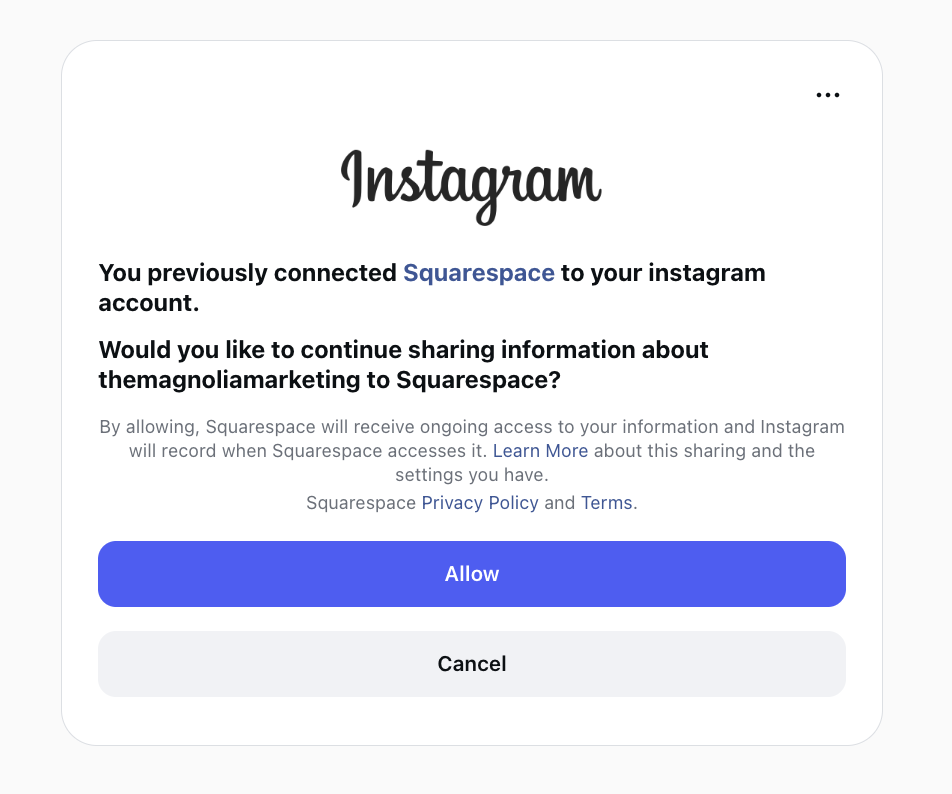
You’ll see an Instagram pop-up window asking for permission to Squarespace to connect to your Instagram account. Click ‘Allow’.
Save your changes and refresh your page.
IMPORTANT NOTE: It can take a few minutes for your feed to sync after first connecting your account or after posting new content.
Quick Troubleshooting:
Squarespace’s built-in Instagram block only works with Instagram business or creator accounts set to public; private profiles cannot display a live feed.
If you want more advanced styling (like full-width displays or custom layouts), you can also embed a third-party Instagram widget or feed code block. Third-party tools let you pull Stories, Reels, and hashtag feeds, but require pasting the embed code into your site.