Website Pages
How to Access Page Settings:
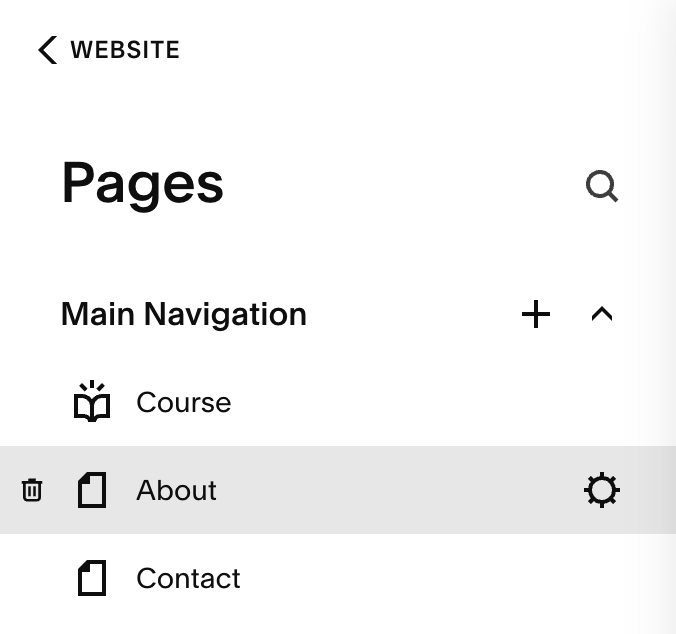
In the Squarespace dashboard, go to Pages.
Hover over the page you’d like to edit and click the ⚙ Gear icon (Settings).
This opens the Page Settings panel where you can make adjustments.
An Overview of Your Page Settings:
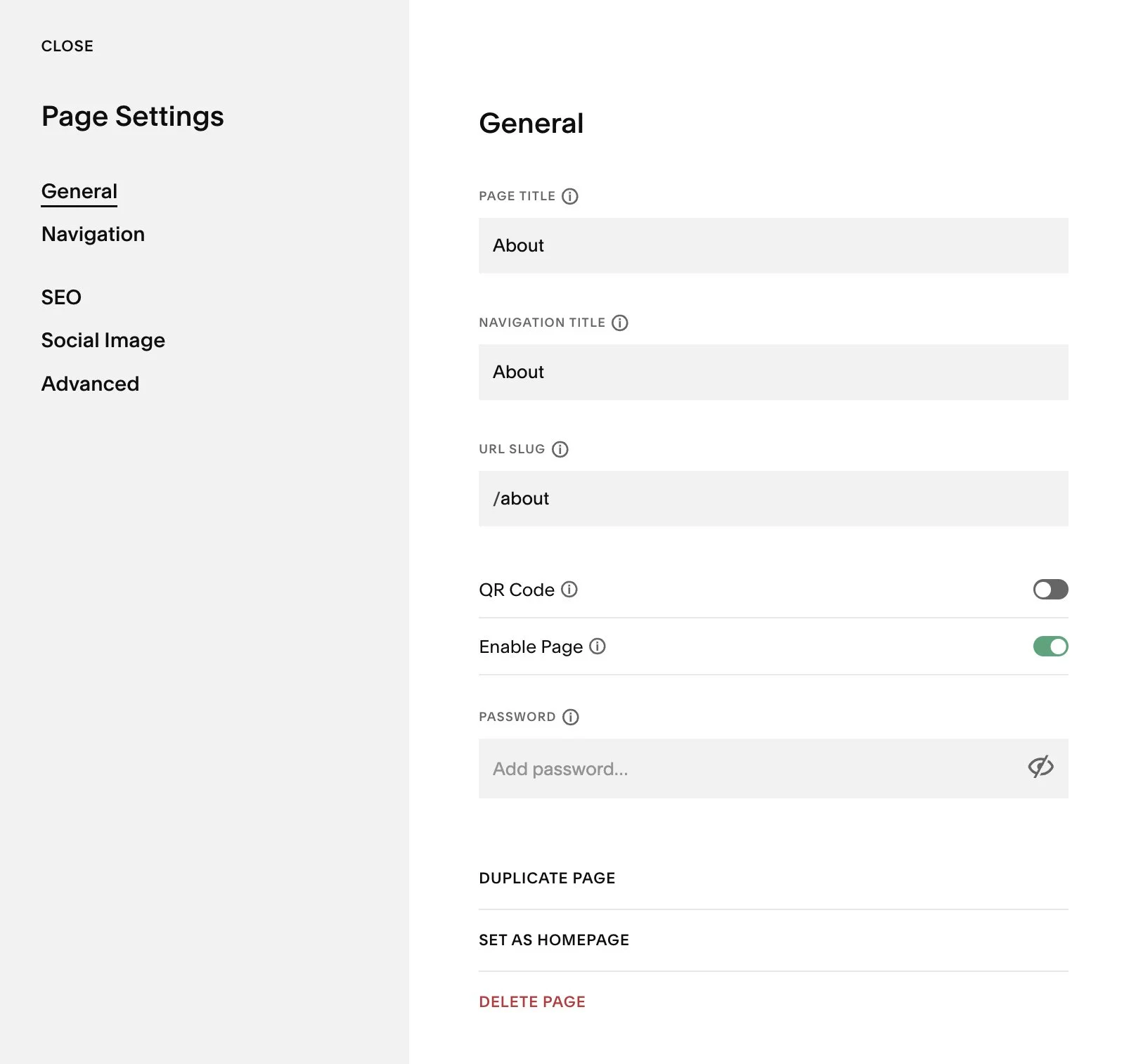
General:Page Title: The name shown in the browser tab and used internally.
Navigation Title: The label that appears in your site’s navigation (if the page is in your navigation).
URL Slug: The part of the URL that comes after your site domain (e.g.,
yoursite.com/your-slug).
Tip: Keep it simple and keyword-friendly. Changing it will break existing links, so proceed with caution.QR Code: Allow people to access the page directly from social media or printed materials
Enable Page: By toggling off, you can disable a page which means your visitors cannot access it.
Password: You can set a password for any page. This is useful if you want a page to only be accessible to certain people.
Duplicate Page: You can make a copy of any of your pages. This is great it you need the same layout for multiple pages( e.g. individual services)
Set As Homepage: You can change your homepage to be any page of your website by selecting ‘Set As Homepage’
Delete Page: Let’s you remove any page. Your page will stay in your trash for 30 days before permanently deleting it. You can restore a page from your trash anytime before this.
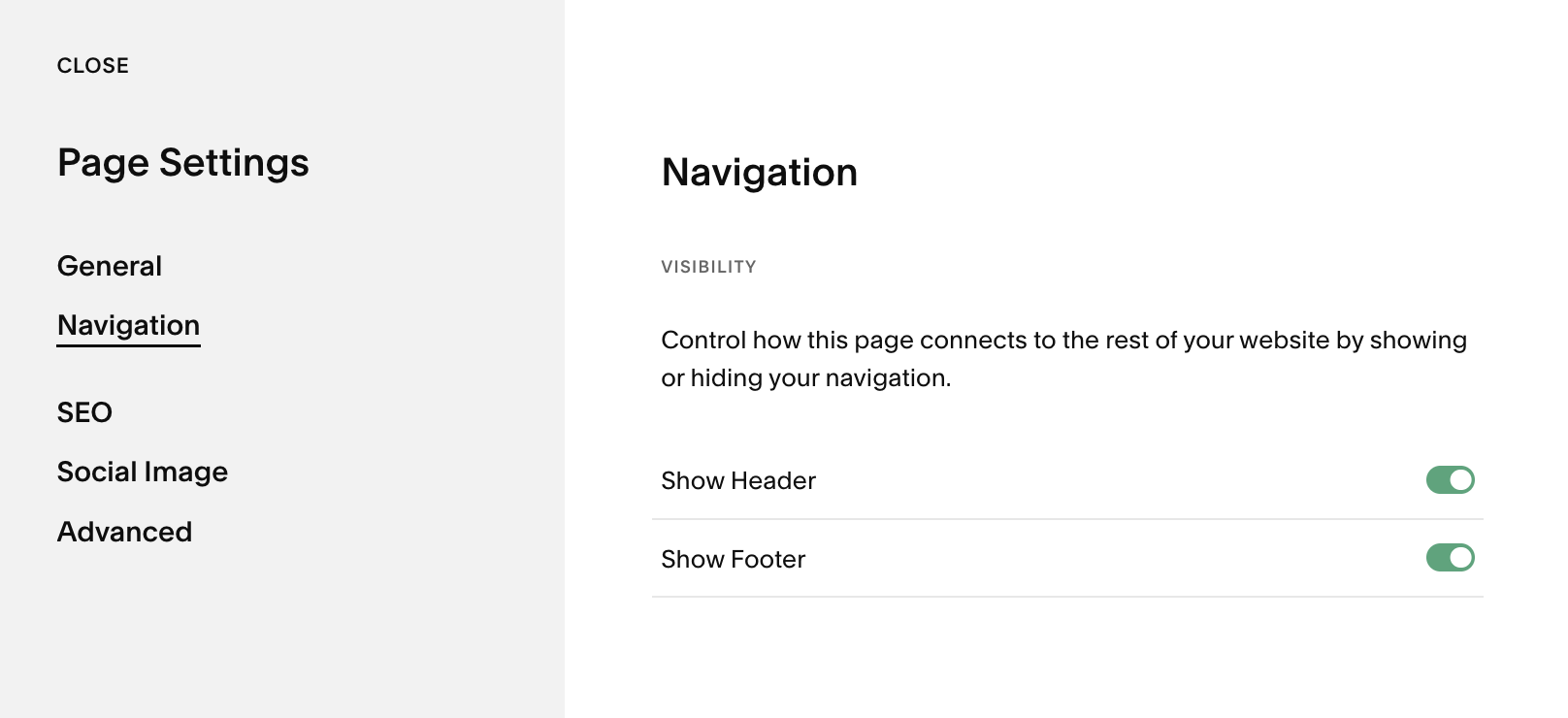
Navigation:Hide Header – Removes the site header (logo, menu, announcement bar) on this page only. Great when you want a distraction-free hero or a full-screen opt-in. support.squarespace.com
Hide Footer – Hides the site footer (links, newsletter block, social icons) for this page only. Useful for ultra-clean sales pages.
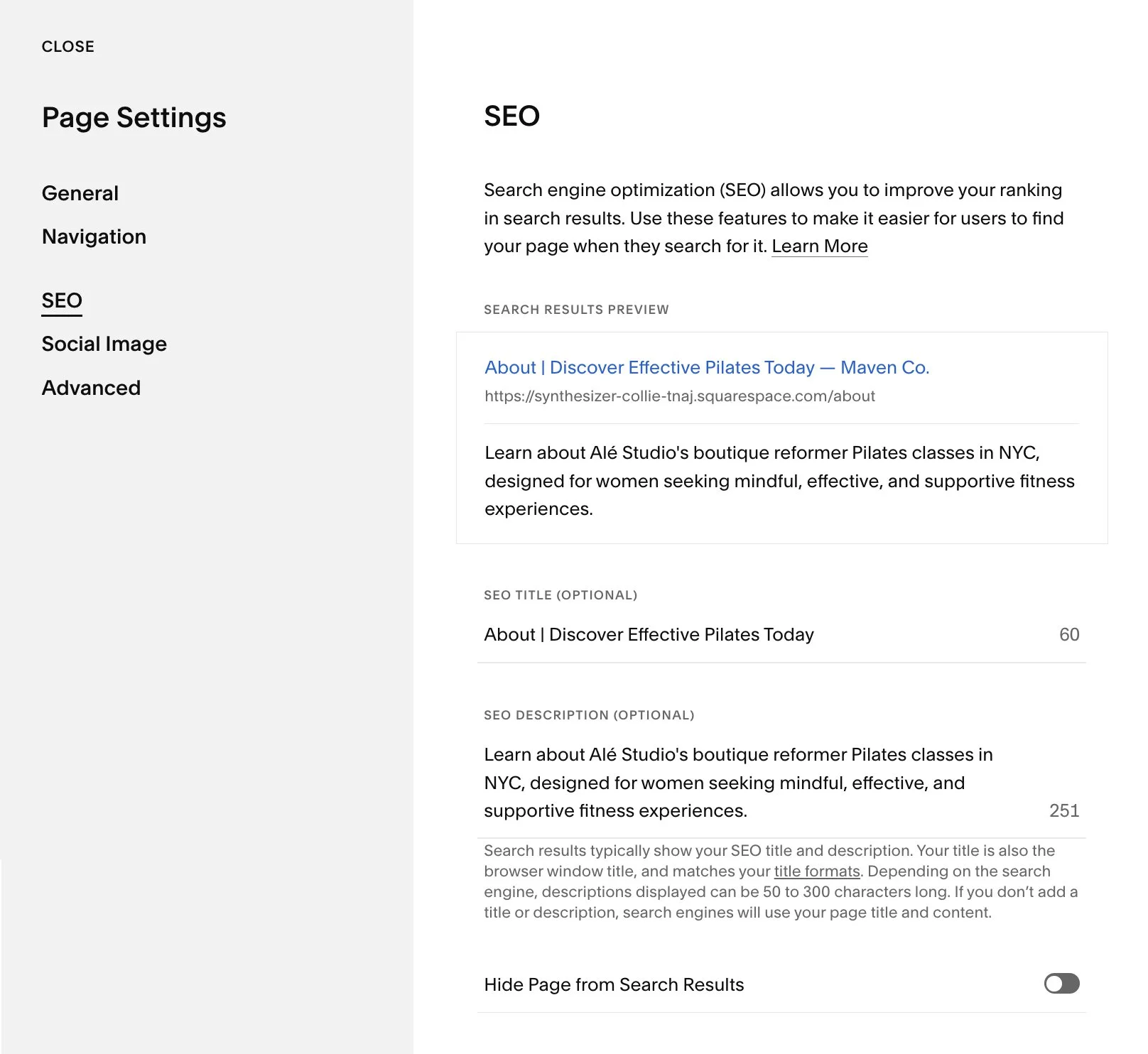
SEO (Search Engine Optimization):Search Engine Title: What appears in search engine results; often you’ll match this to the Page Title but may tweak for clarity.
Meta Description: A concise summary of the page content (around 150-160 characters is a good target).
Hide Page from Search Results: Toggle this if you don’t want the page to appear in search engines (useful for thank-you pages, internal client pages, etc.).
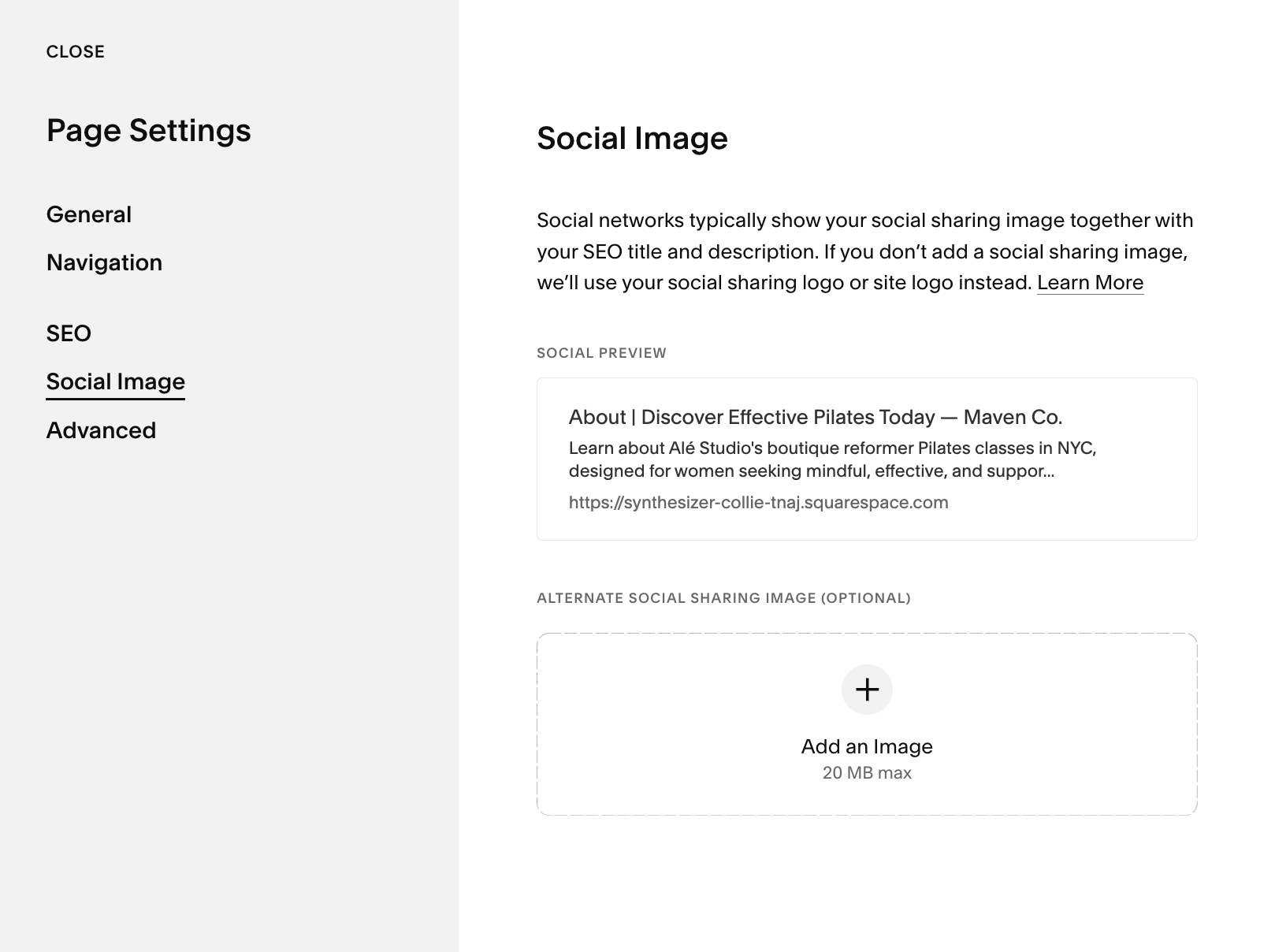
Social:Social Title / Description: Customize how the page looks when shared on social media (Facebook, Instagram, etc.).
Social Image: Upload a graphic that will appear as the preview when someone shares the page link. If nothing is added here, a social image will be generated automatically from your existing page content.
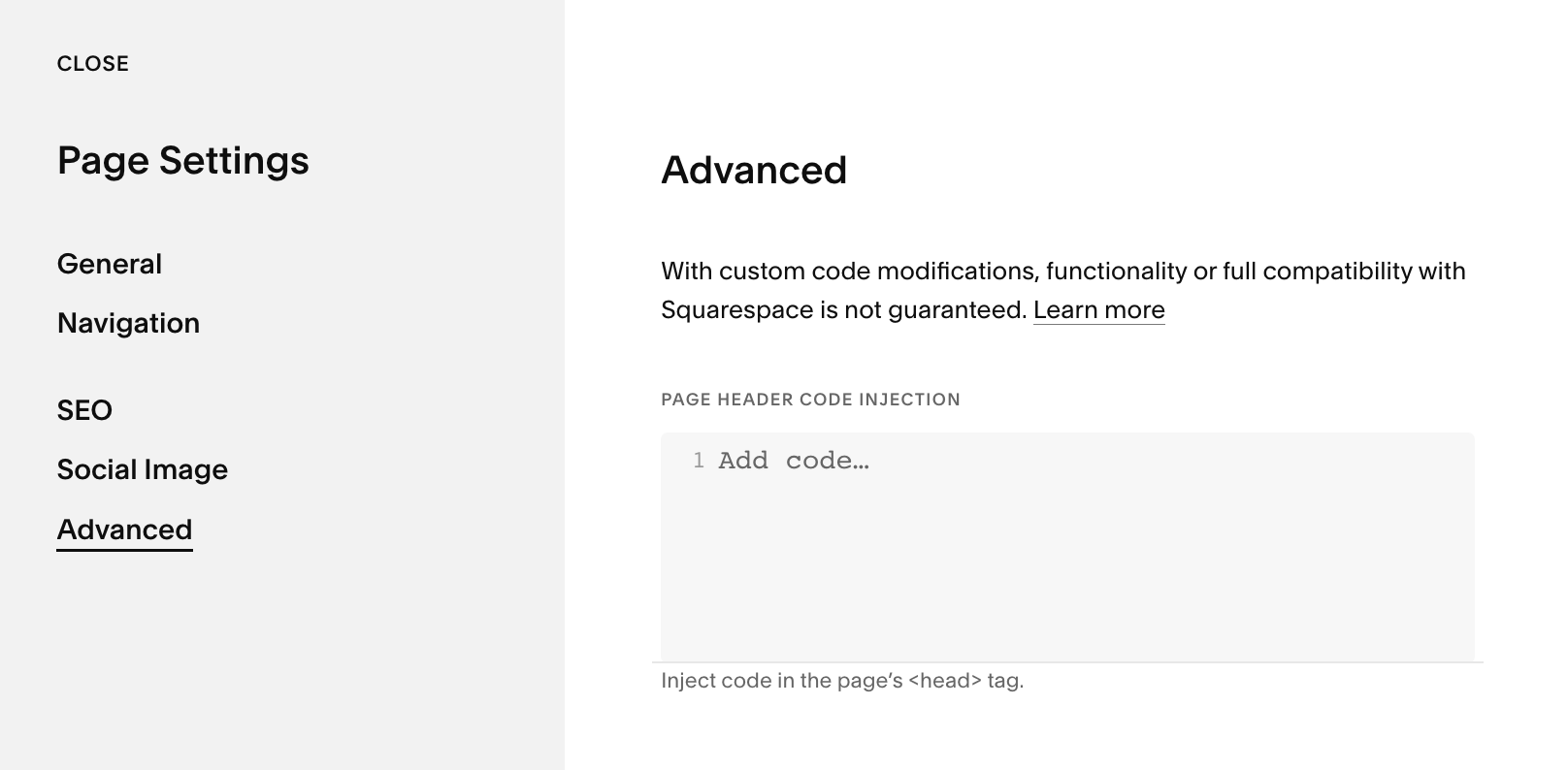
Advanced:Page Header Code Injection: Add custom code that will appear in the
<head>of this page (e.g., schema markup, tracking pixels). Can also be used to add code that only effects the page, and not site-wide.