Using Sections
Color themes are an easy way to add visual interest and variety without redesigning every section from scratch. You can change the color of any section on your website.
To Do This:
Go into Edit mode
Hover the section you want to change and click Edit Section).
Open the Colors tab.
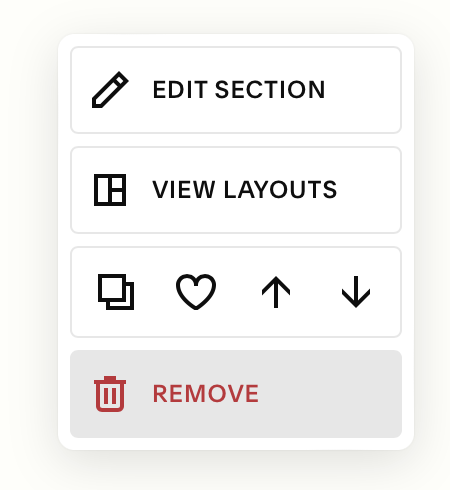
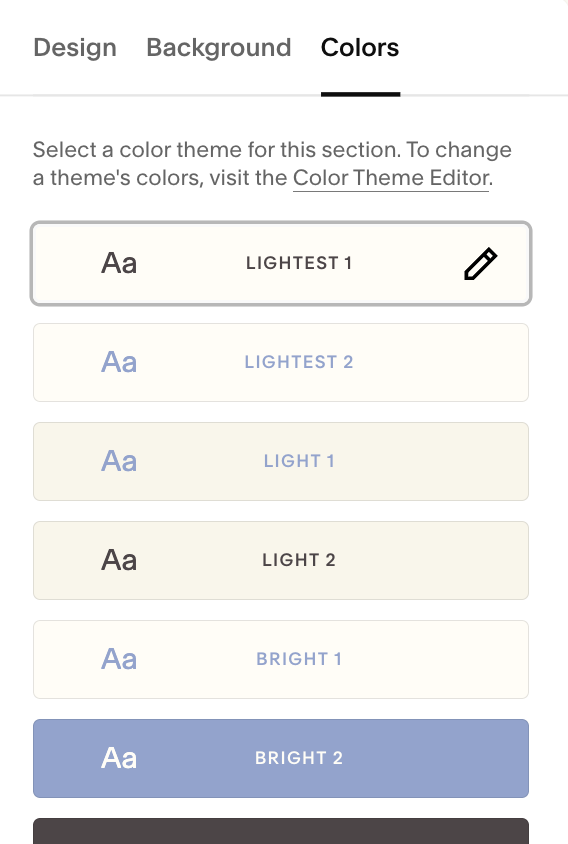
Changing Your Section’s Color:
Select your preferred color theme (e.g. Light 1, Bright 2, Dark 1). This will instantly update the section’s background, text, links, and button colors.
Click Save (top-left) when you’re happy.
Editing Color Themes:
If you want to adjust the color of an element in your section, you can hit the pencil icon next to the Color Theme you’d like to adjust. This will open up that specific color theme in site styles, where you can adjust as desired.
Important Notes:
Any changes you make to a Color Theme is a global edit. That means that it will impact any other section on your website that uses that theme.
You can adjust the color of some elements (like text and shapes) without changing your Color Theme. You’ll. learn how do do this the ‘Editing Your Template’ chapter.

Quick Troubleshooting:
Text is hard to read on the backgreound:
Make sure that you choose contrasting colors for your background and your fonts so that they are easy to reach (e.g. Black background, white text).Two sections look slightly different:
You may be using a different theme. Because you have multiple themes that will have similar backgrounds and colors it can be easy to accidentally select two different themes that look similar. Double check both sections to make sure they’re using the same color theme.I changed a theme and other pages changed too:
Because themes are global, any changes you make will apply across your website.