Using Sections
To Add a Section
Step One: Open the page you want to add the section to and click Edit.
Step Two: Move your mouse between sections (at the very top/bottom of your section) and click ‘Add Section.

Step Three: Choose a blank section, a layout from a Squarespace or a saved section, then click Add.
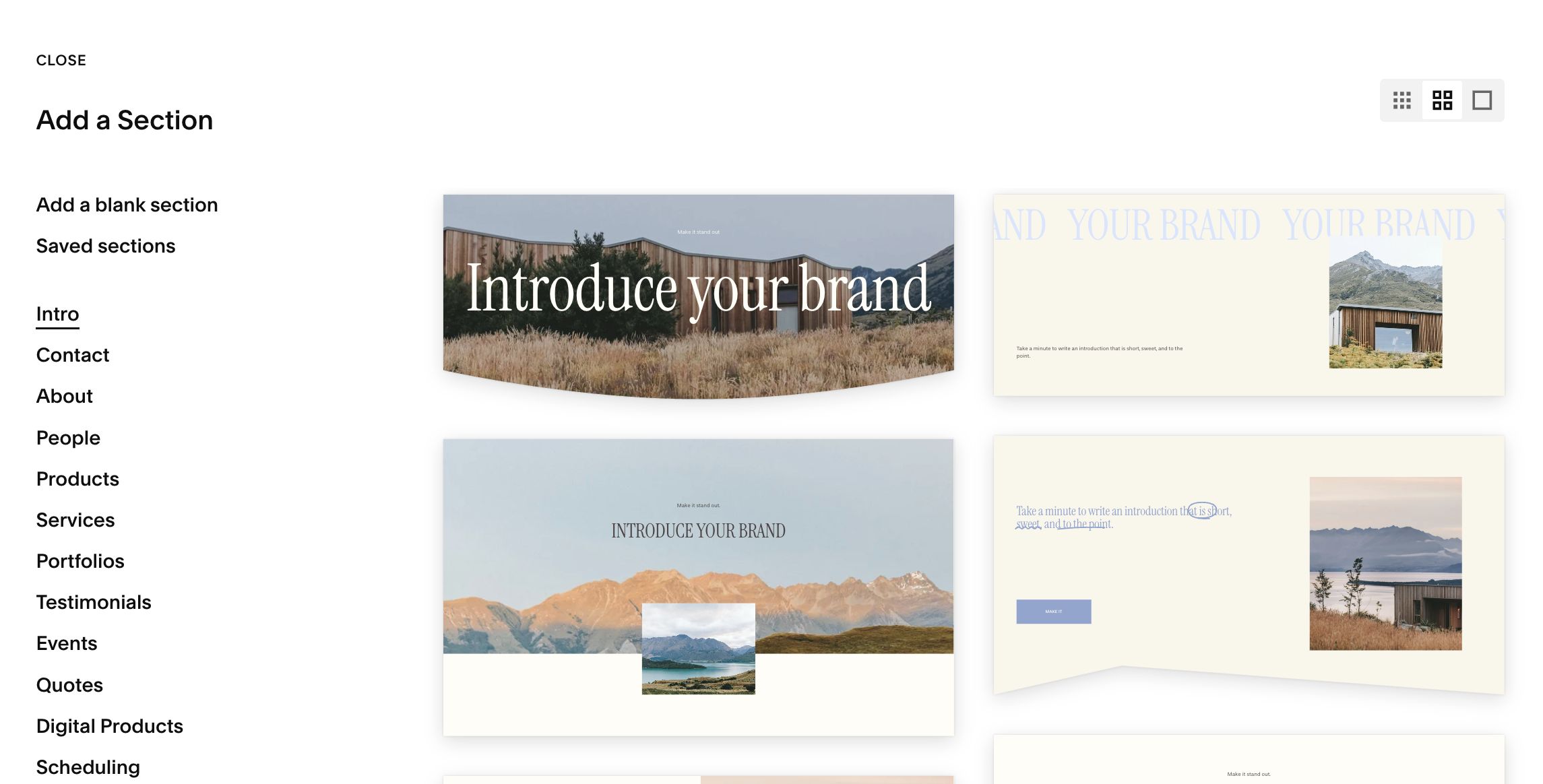
Step Four: Click Save (top left) when you’re done.
Note: Adding a section doesn’t change any other sections on the page. You can rearrange sections later by dragging the move handle on the right edge of a section while in Edit mode (this is covered in your other lesson).
To Delete a Section:
Click Edit on the page.
Hover the section you want to remove to reveal its toolbar.
Click the trash can (Delete) and confirm.
Click Save.
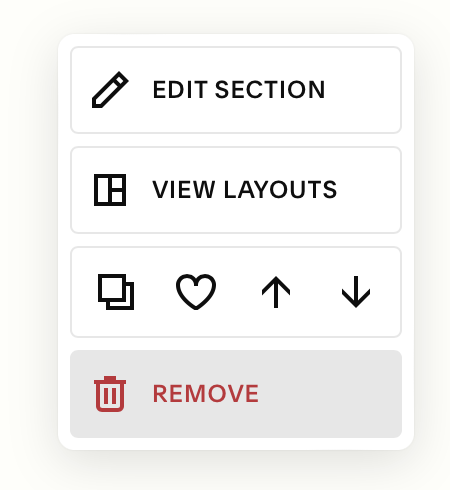
Note: Deleting a section permanently removes everything inside that section. If you delete the wrong one while still in Edit mode, use Undo (the back arrow at the top) before you save.

Quick troubleshooting
I don’t see the “+ Add Section” button:
Make sure you’re in Edit mode.
I deleted by accident and already saved:
Hit ‘Command + Z’ (or ‘Control + Z’) right away if you’re still in the editor and it will restore that section.