Editing Your Template
Adding Social Icons to Your Header:
Open any page and click Edit.
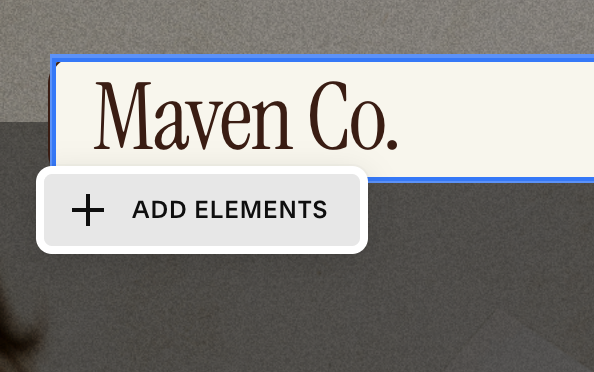
Hover the header and click '“Add Elements”
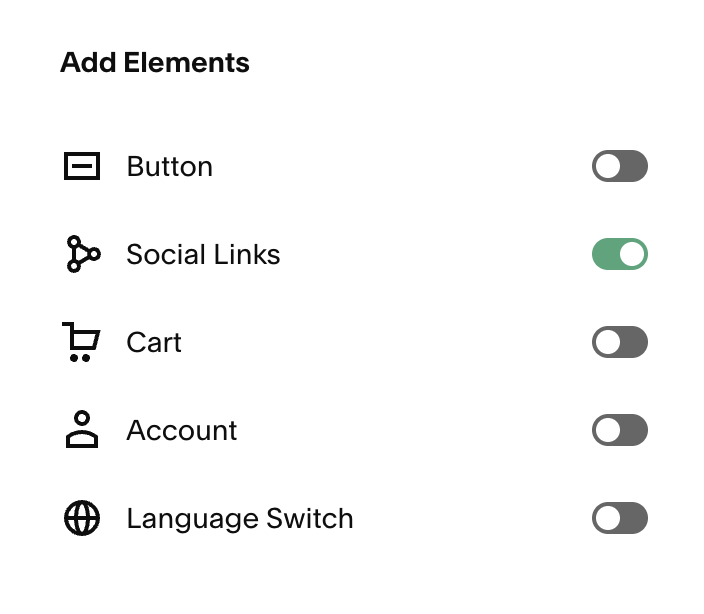
Toggle Social icons on.
Adding Your Social Links:
You can add your social media links into any social media block on your website.
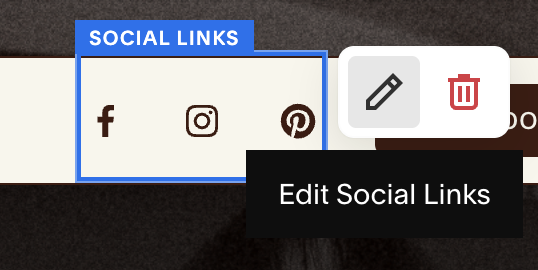
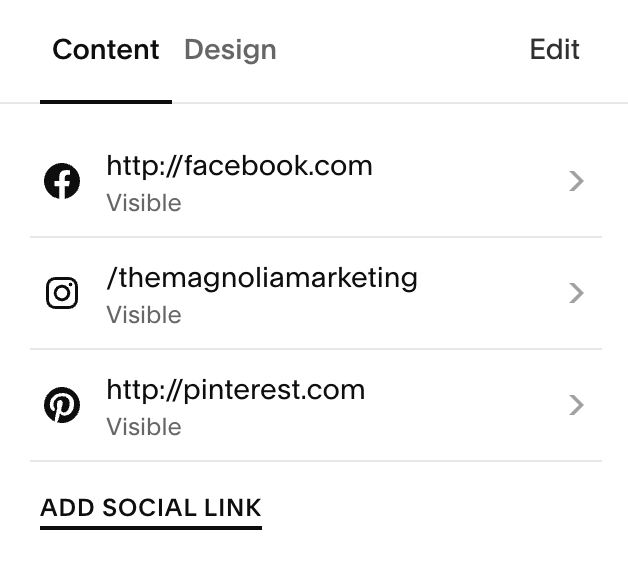
To do this:Hover over the social media clock and click “Edit Social Links” (or the pencil/edit icon) → Add Social Link (or click into an existing social link you’d like to edit)
Paste the full profile URL (e.g.,
https://instagram.com/yourname).Repeat for each platform you want.
What Links Work:
Squarespace recognizes most major platforms (Instagram, Facebook, TikTok, YouTube, Pinterest, LinkedIn, X/Twitter, Threads, etc.).
Each URL shows the matching icon automatically. If an icon isn’t recognized, it will display as a generic link icon.
Adding Social Links Via Your Site Settings:
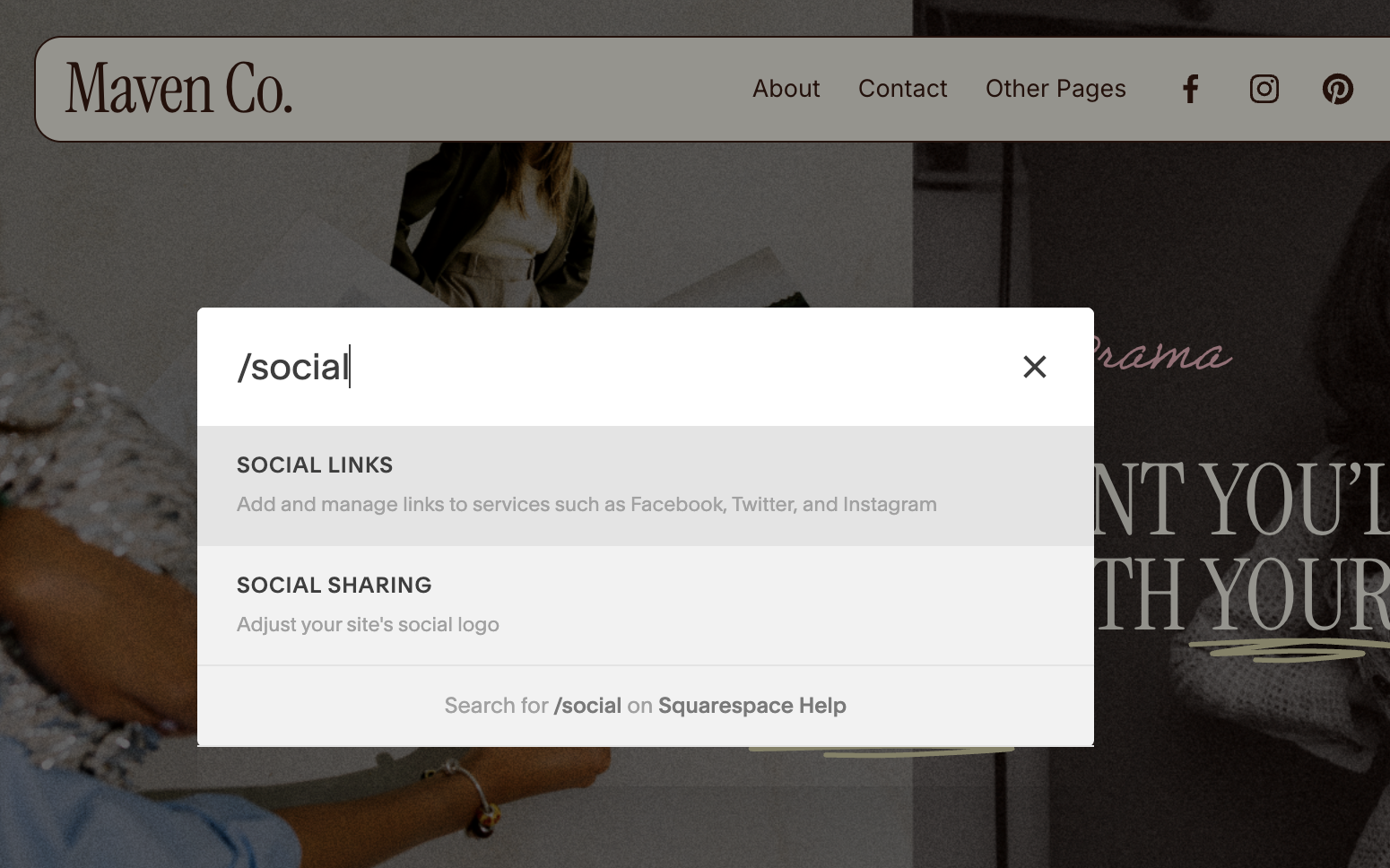
Hit the “/” (forward slash) on your keyboard.
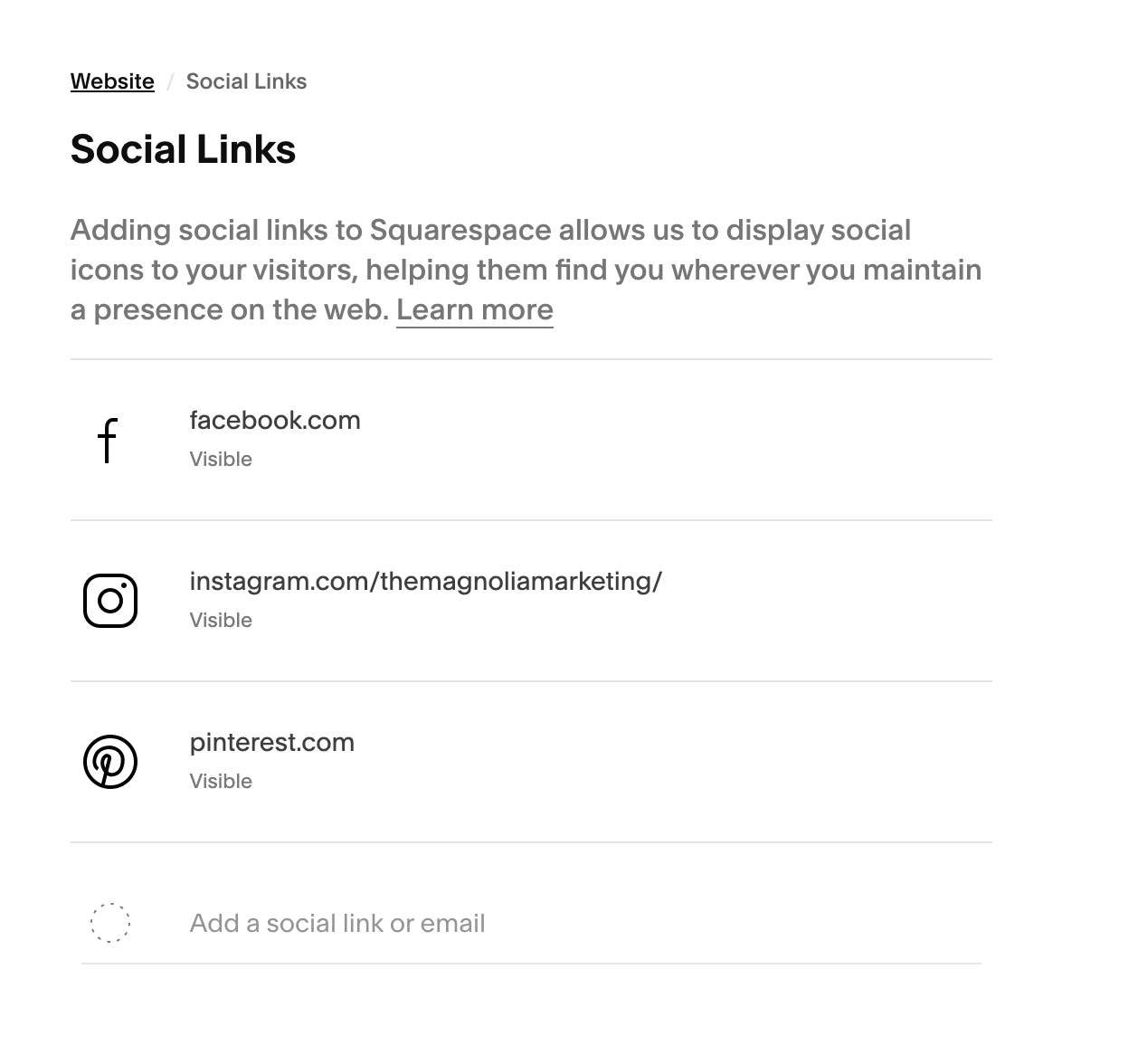
Type “Social Links” into the search bar that pops up.
Paste the full profile URL (e.g.,
https://instagram.com/yourname) in the “Add a social link or email” section.Repeat for all social links you’d like to add.
You Can Also:
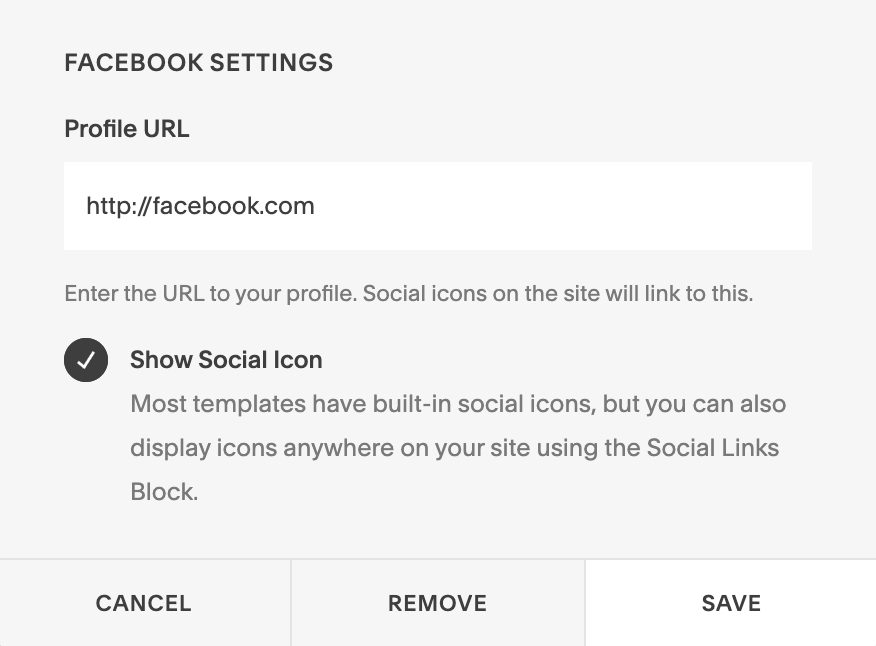
Edit an existing social media link: Just click on the link you want to edit. There will be a popup screen where you can paste an updated link. Hit ‘Save’.
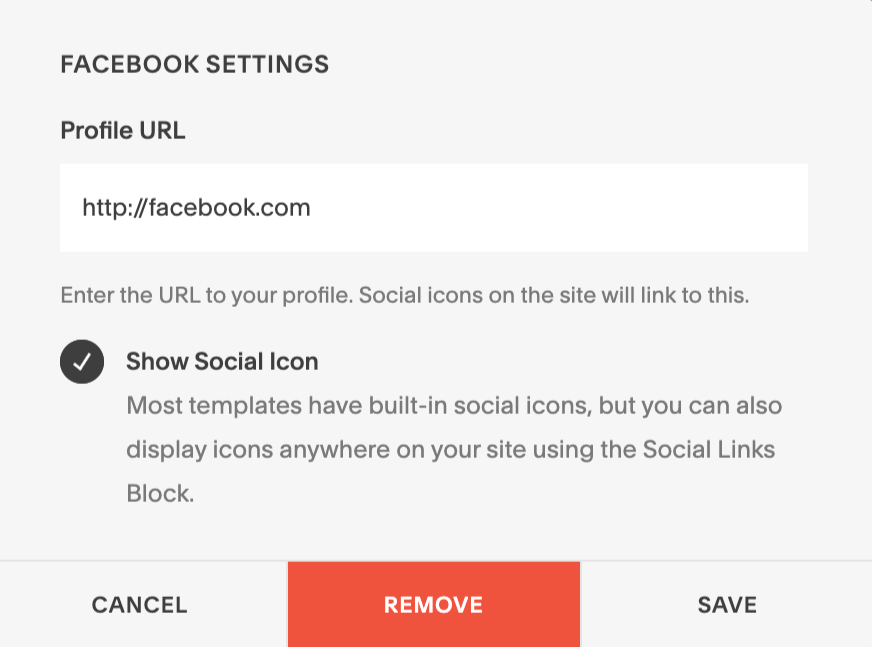
Remove a social link: Click on the link you want to delete and select ‘Remove’ from the popup menu.
Adding Social Icons to a Page Section:
Click Edit on the page → choose where you want icons.
In the section you’d like to icons to go hit + Add Block and select Social Links under ‘Basics’
Click the block’s pencil → add each profile URL.
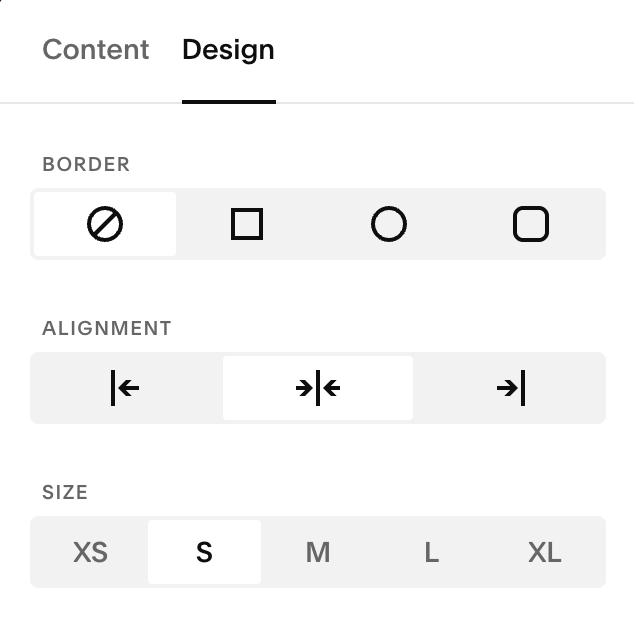
Choose icon style (shape), size, alignment, and spacing.
Styling Your Social Icons:
You can access style options by hitting ‘Edit Social Links’ and going to the Design tab.
From here you can change the style of your social icons, their alignment, and their size.
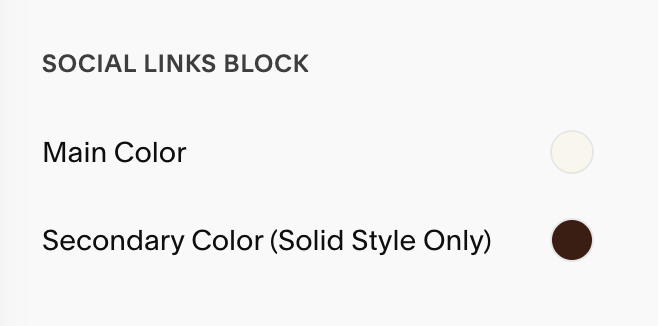
The colors of your icons come from the section’s Color theme (Site Styles → Colors), under ‘Social Links Block’
Edit style, alignment & size:
Edit color:
Reordering, Hiding, or Removing:
Reorder: click “edit” and drag links up/down in the list.
Hide temporarily: toggle off ‘Display Social Icon’ or delete the block from a section.
Remove a link: click the social link you want to remove then select Delete Social Link (note: this effects the social links globally across your site. To hit a social icon in one section only, hide it by toggling off ‘Display Social Icon’)
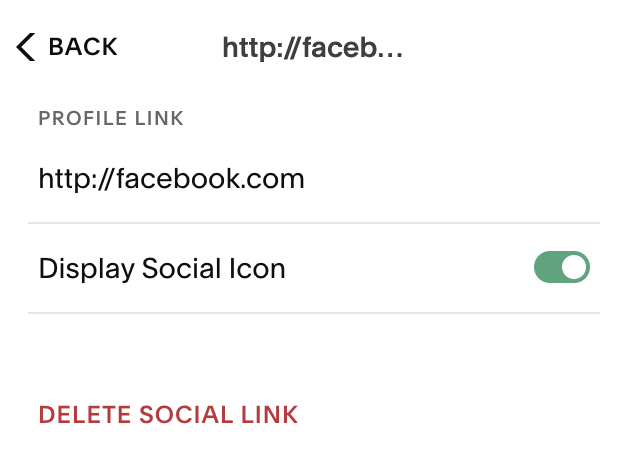
Quick Troubleshooting:
Icon doesn’t show / shows generic icon: Double-check the URL is a full, public profile link (no typos, no private/short links).
Colors aren’t changing: You’re likely editing the wrong theme; switch the section’s Color theme or edit that theme in Site Styles → Colors.
Icons too big/small: Change size under your ‘Design’ tab settings. You can choose between XS all the way up to XL