Editing Your Template
The Asset Library is where you can upload, organize, and reuse images, videos and brand graphics. Using the Asset Library can help keep you stay organized and save time when you’re customizing your website.
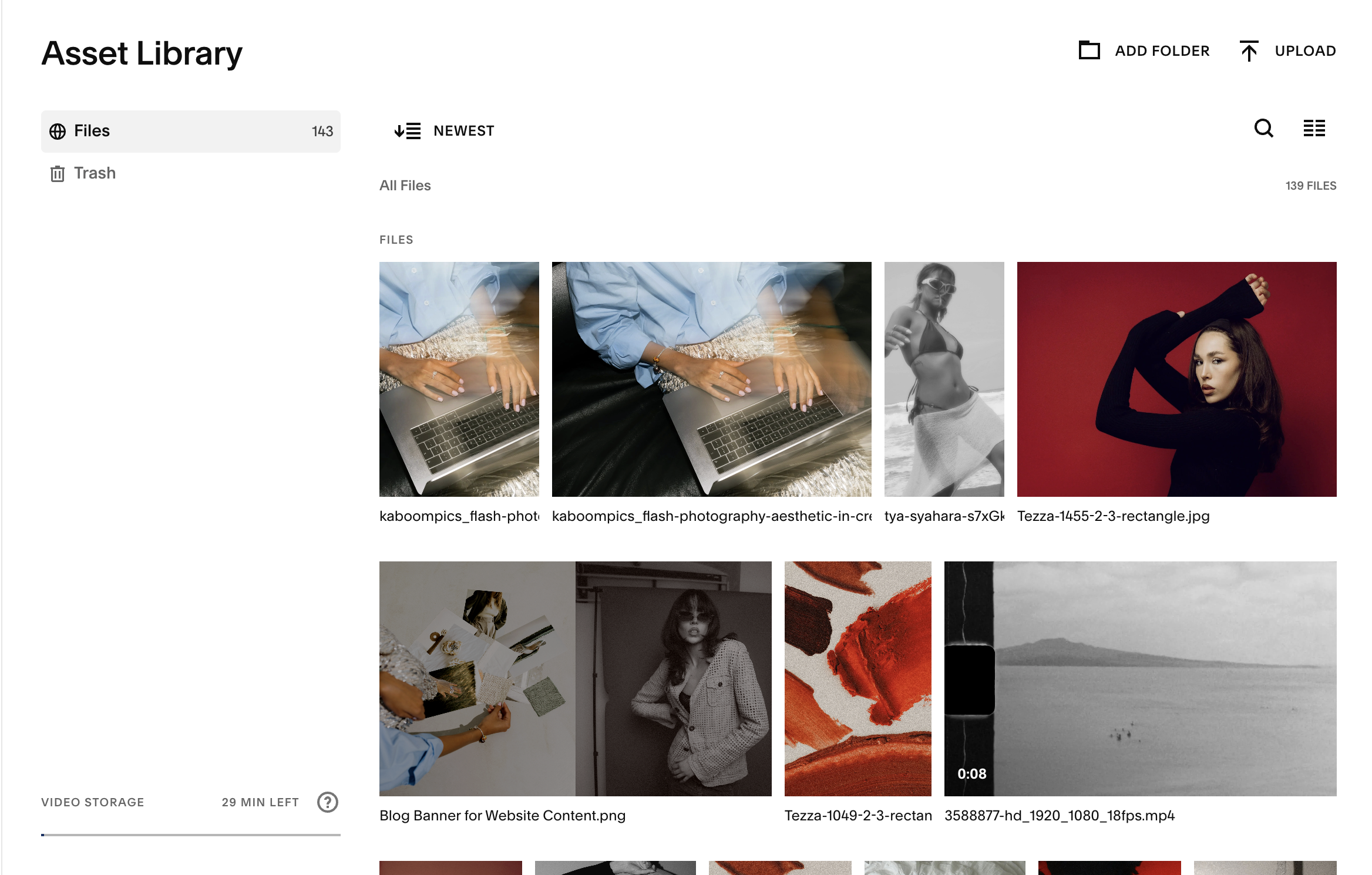
Accessing Your Asset Library:
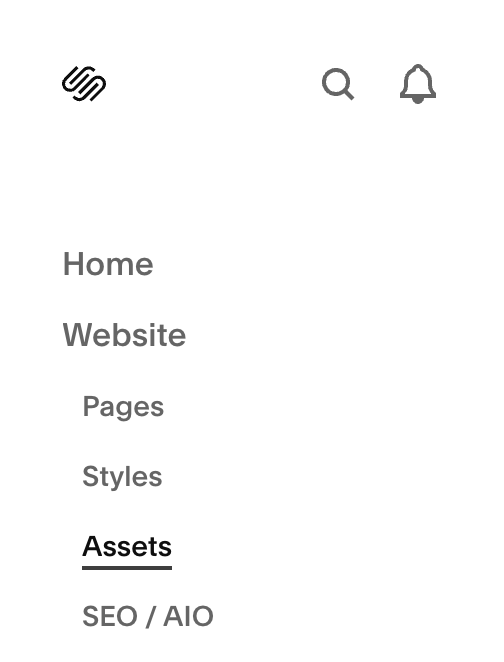
From your site’s dashboard, navigate to the left-hand sidebar.
Click Design → then select Asset Library.
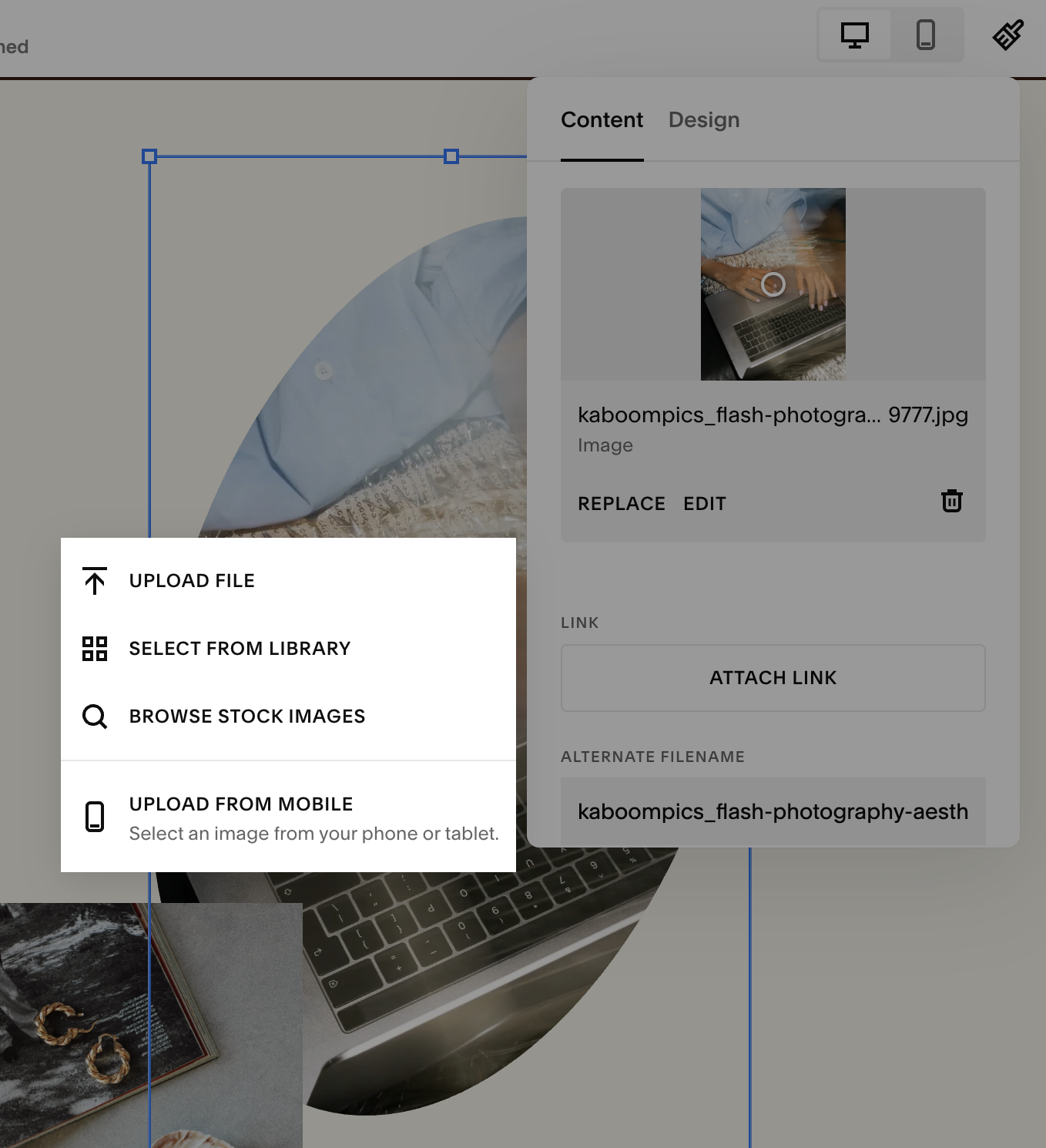
You can also open the library when you’re adding or replacing an image: choose “Select from Library” rather than uploading fresh.
Uploading and Organizing Files:
To add new files: Inside the Asset Library click Upload. You can upload multiple images at once.

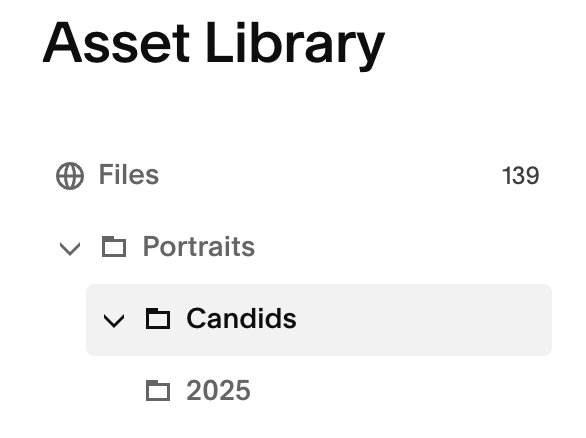
Create Folders:You can create folders in your asset library by clicking “Add Folder”. This helps when you have lots of assets that you want to keep organized or to find your content easily when filling out your website.

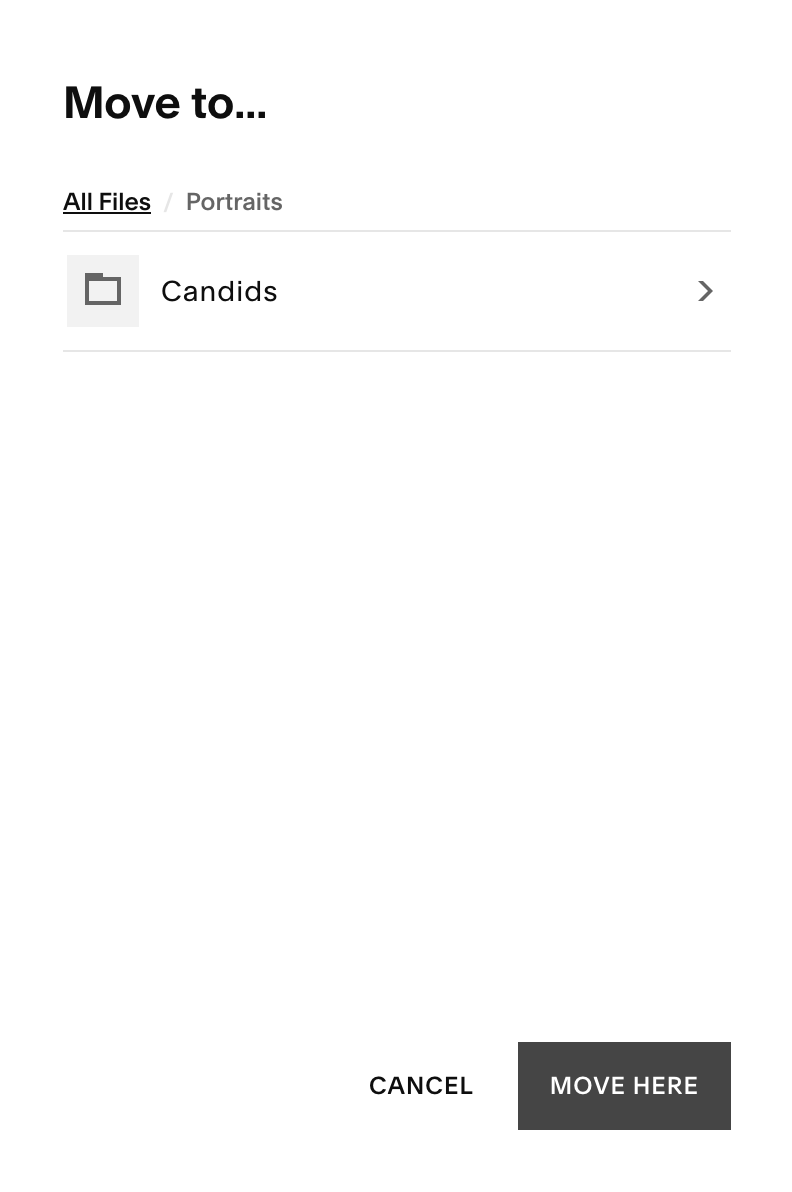
Stacked Folders:You can also create folders within folders to keep hierarchy tidy (for example: “Portraits → Candids → 2025”)
Moving, Deleting, and Managing Assets:
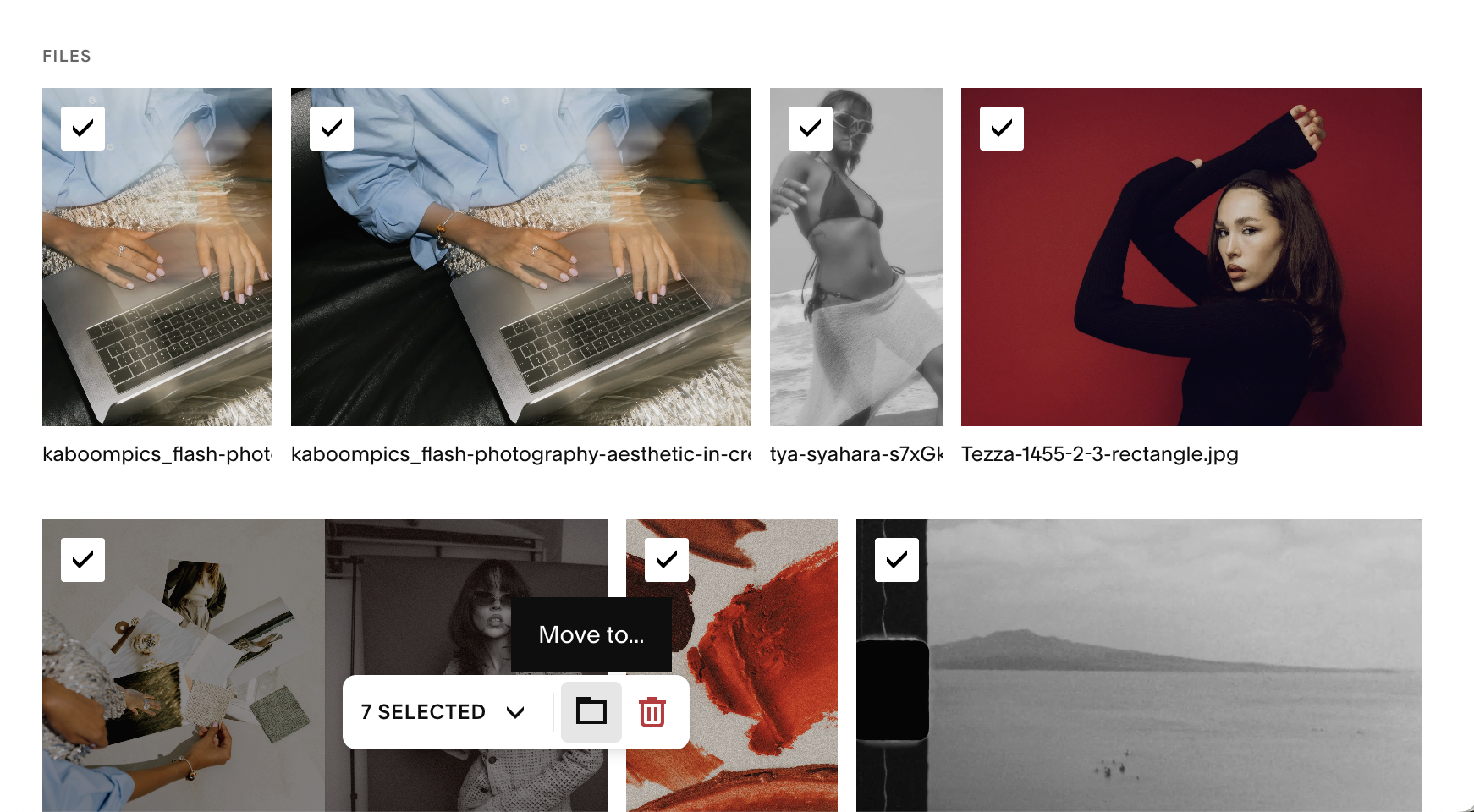
To move files into a folder: Select the images you’d like to move, click the folder icon at the bottom of your screen, and choose their destination.
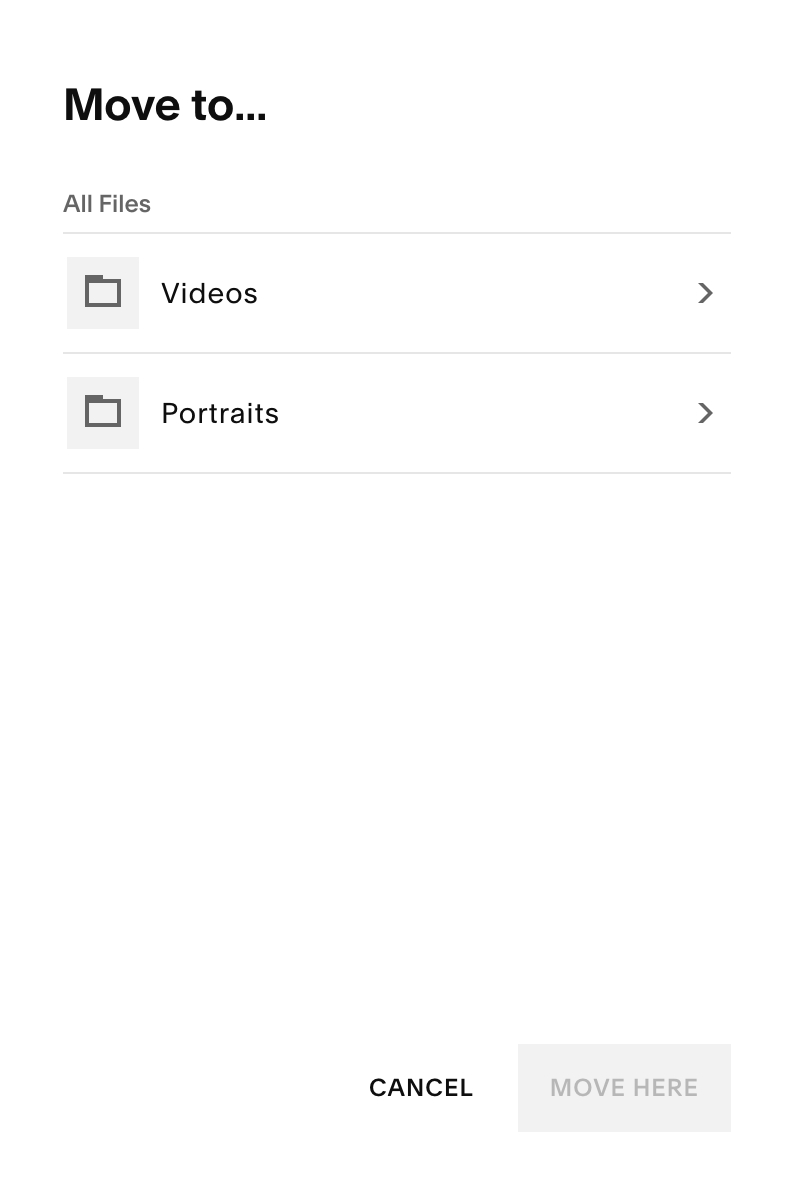
→
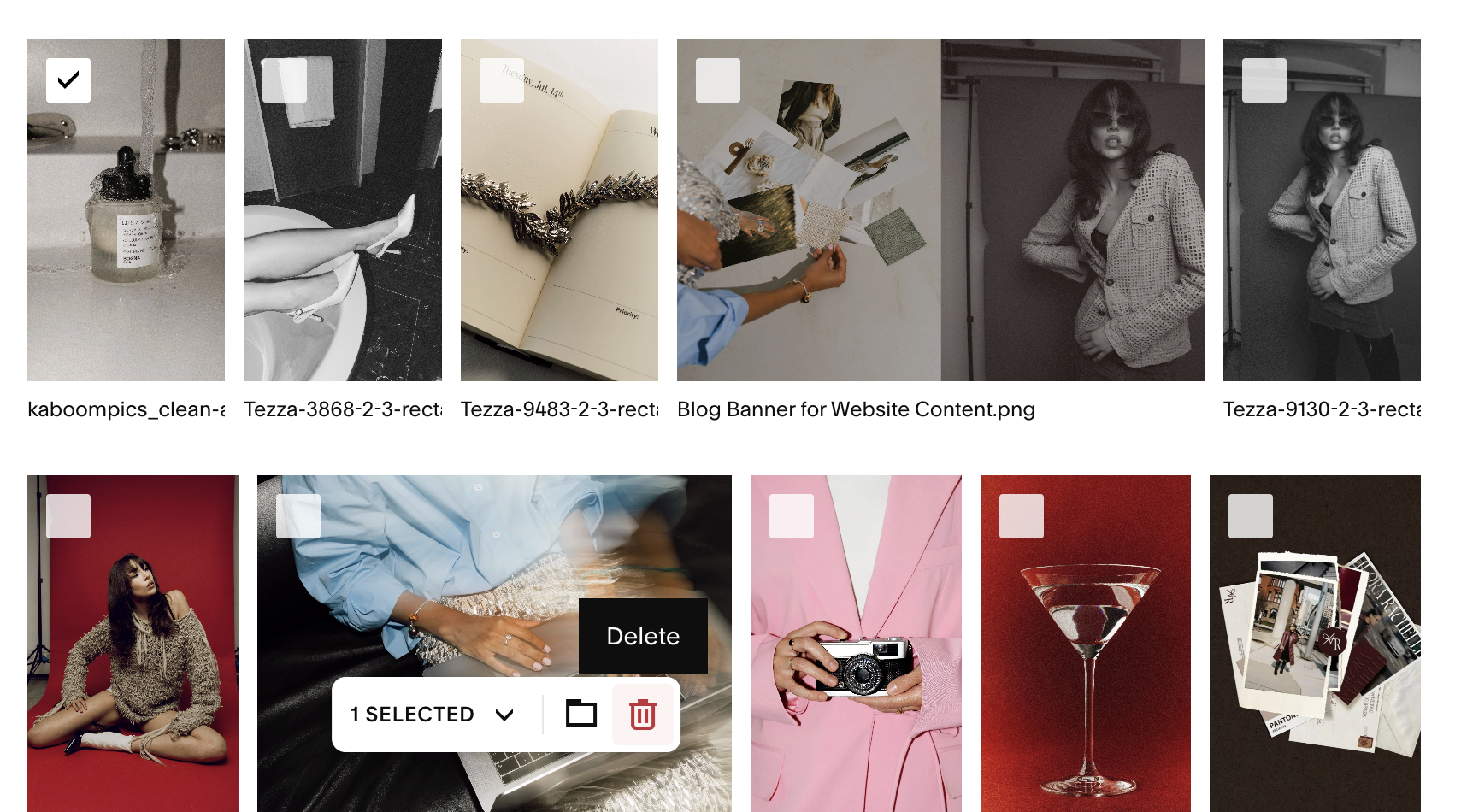
Deleting Images:Select the image(s) you’d like to delete, and hit the trash icon. Deleted items go to a “Trash” folder first, where they stay for 30 days before permanent removal.
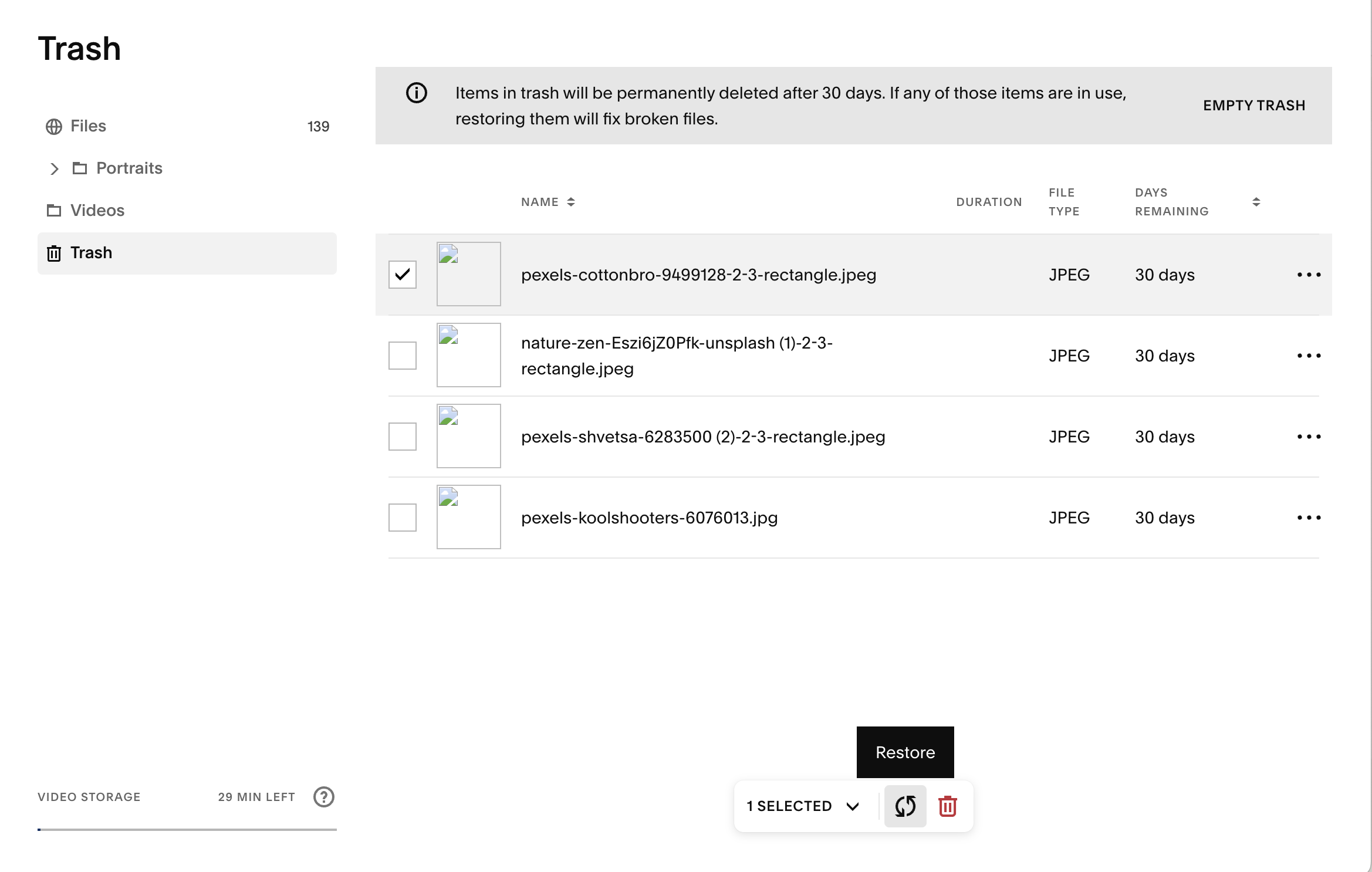
Retrieving Deleted Images:You can retrieve any deleted images within 30 days by going to your trash, selecting the image and clicking the arrows at the bottom to restore it to your library.
IMPORTANT NOTE: If you delete an image that’s being actively used on your site, you’ll see a warning. Removing it will break links or placeholders so always replace it with another image before deleting from your asset library.
Using Assets Across Your Site:
To use your assets add or edit any image block, gallery or background
Choose Select from Library
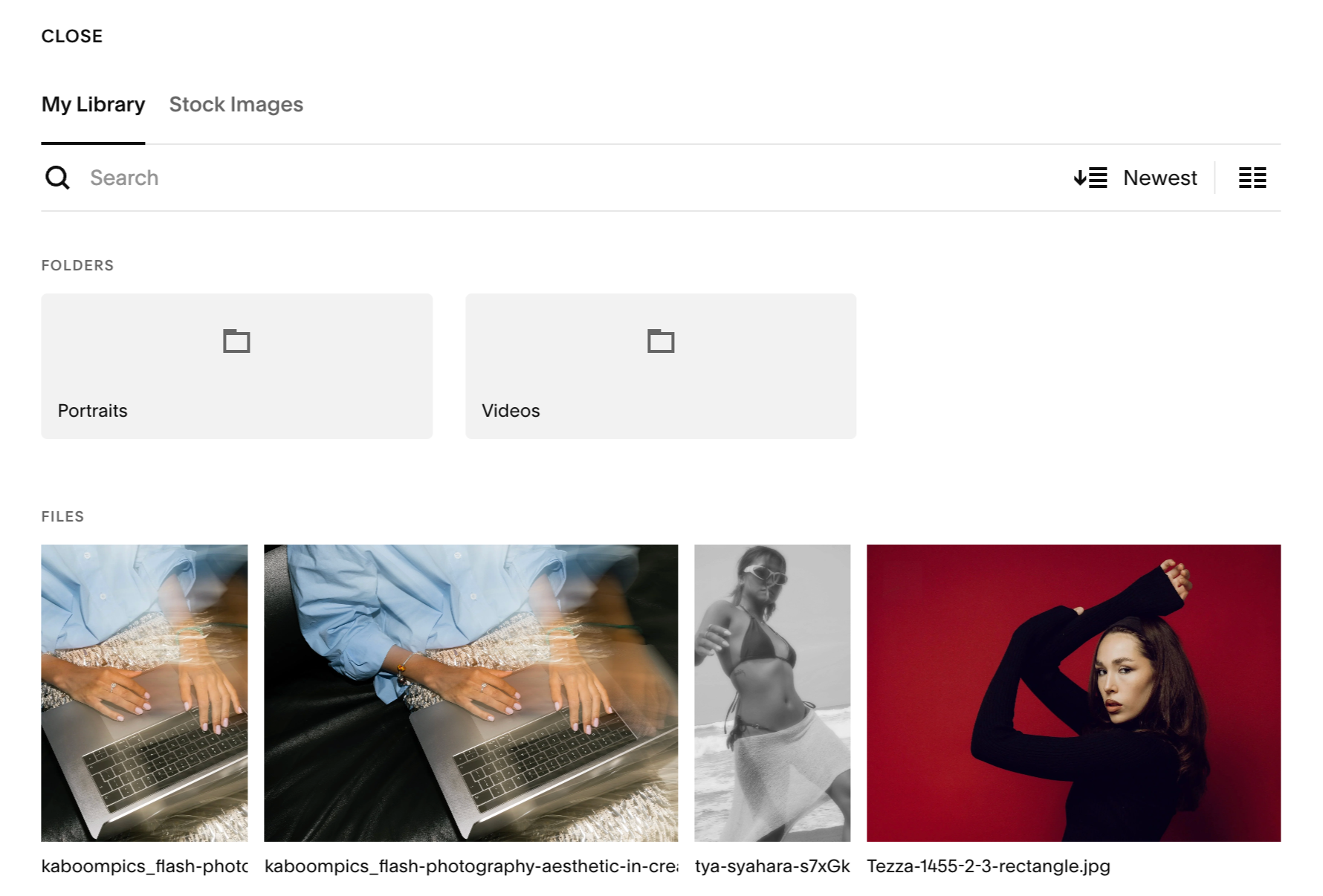
This will show you all the images in your asset library as well as your folders.
→
Helpful Info:
You can use the search bar to easily find specific asset, use the search bar at the top of your library. If you have labelled your files, this can help you can locate them fast
If you browse the stock images integrated into Squarespace, any image you choose will be saved into your library automatically
Any image, video, or graphic you upload to your Squarespace site (e.g. directly to an image block) will be added to your asset library automatically