Editing Your Template
Open Your Page Editor:
Go to your page and click Edit.
Click into the Text block you want to change (you’ll see the mini toolbar appear).
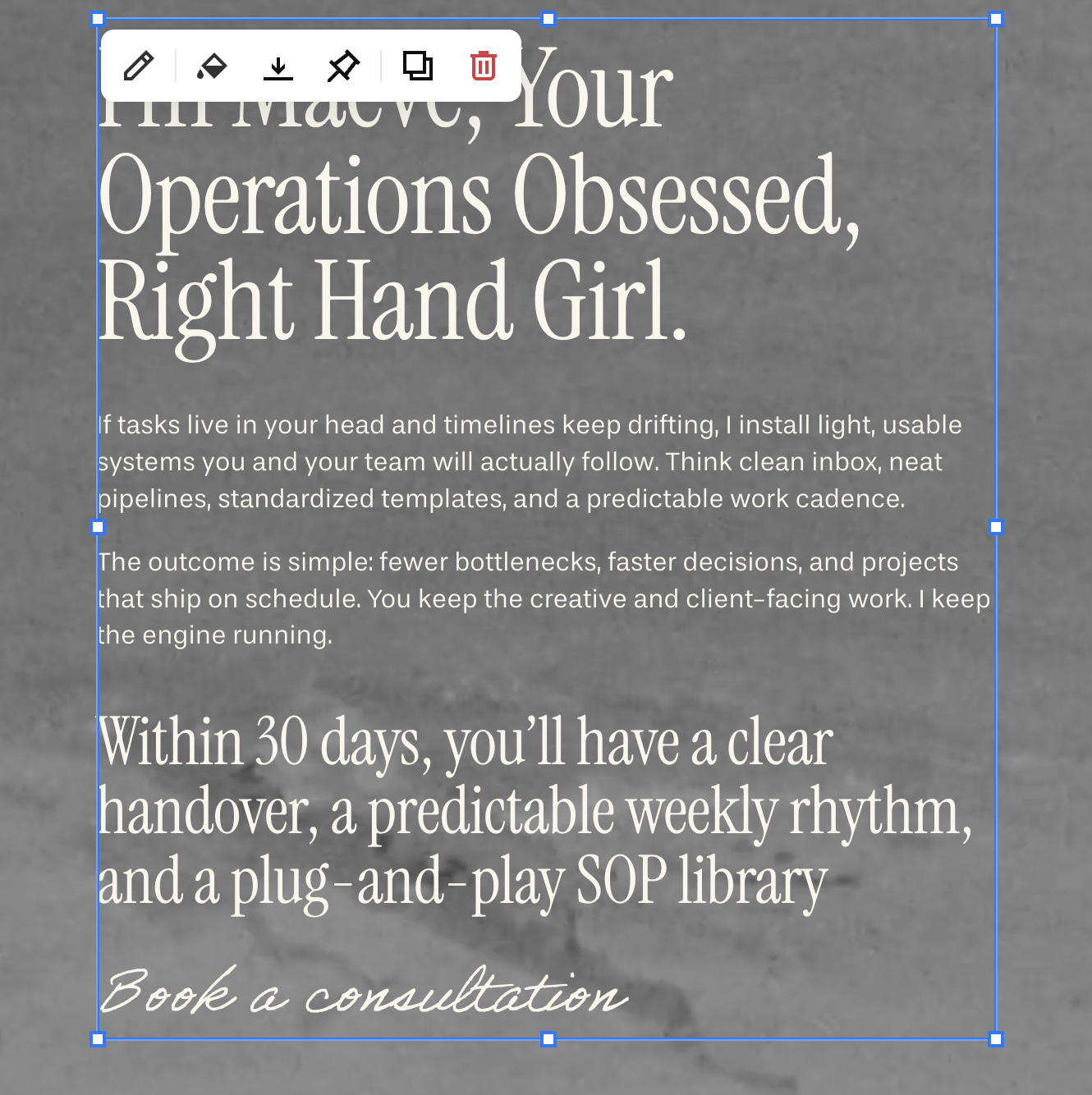
Link Options:
Web Address – Paste a full URL
Page – Choose any page on your site from the dropdown list (see Fig. 2 ) or type use your forward slash key ( / ) and type the url slug of your page in there (e.g. /about )
Email – Type in the email address you’d like to receive inquiries, this will create an email pop-up so that visitors can email your directly.
Phone – Type a phone number you’d to direct your visitor tor
File (download) – You can upload a PDF or other file that you’d like to make downloadable then apply.
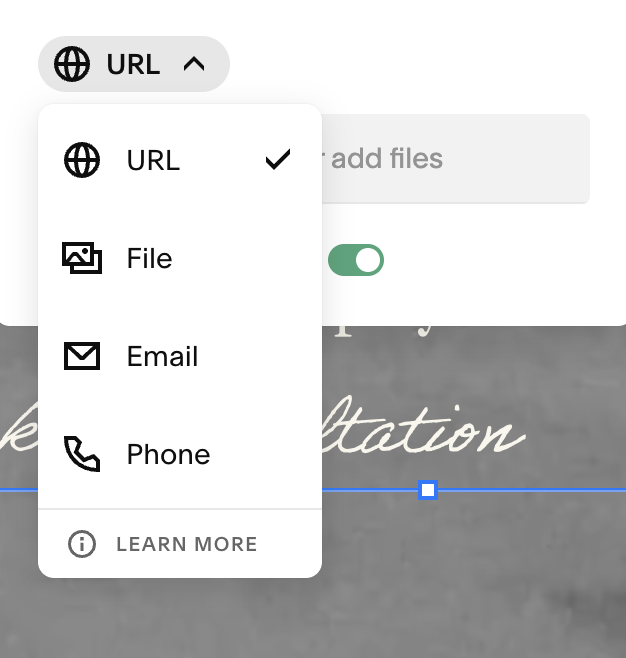
fig. 2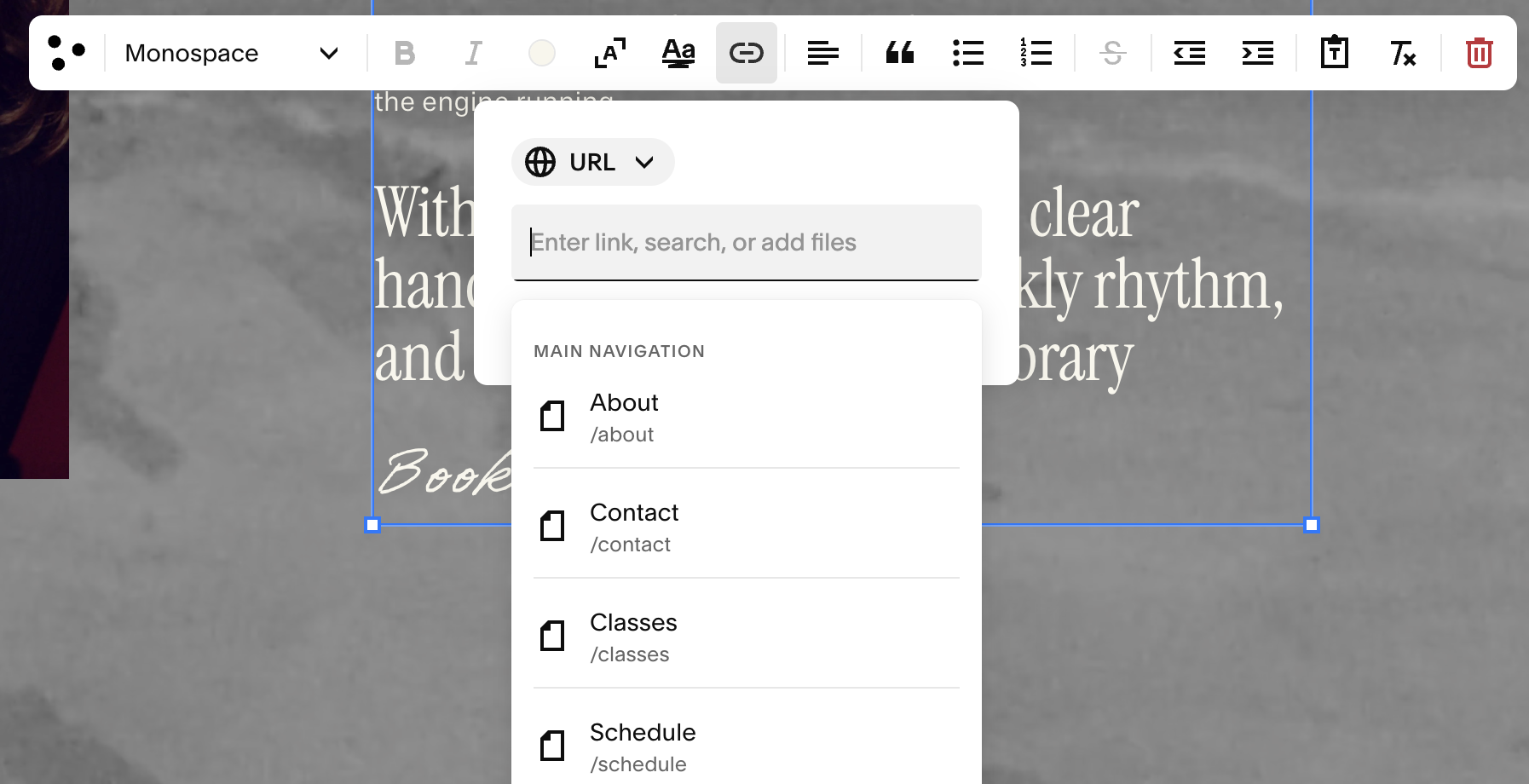
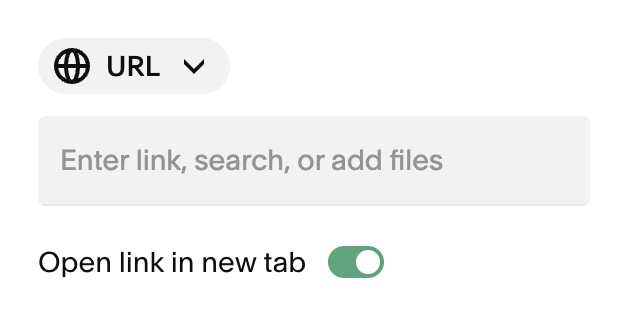
You can also choose to have a link Open in new tab. This is great to use if you’re linking to an external site, or if you’re directing your visitor to another page on your website but would still like them to keep their place on their current page.
Editing & Removing Links:
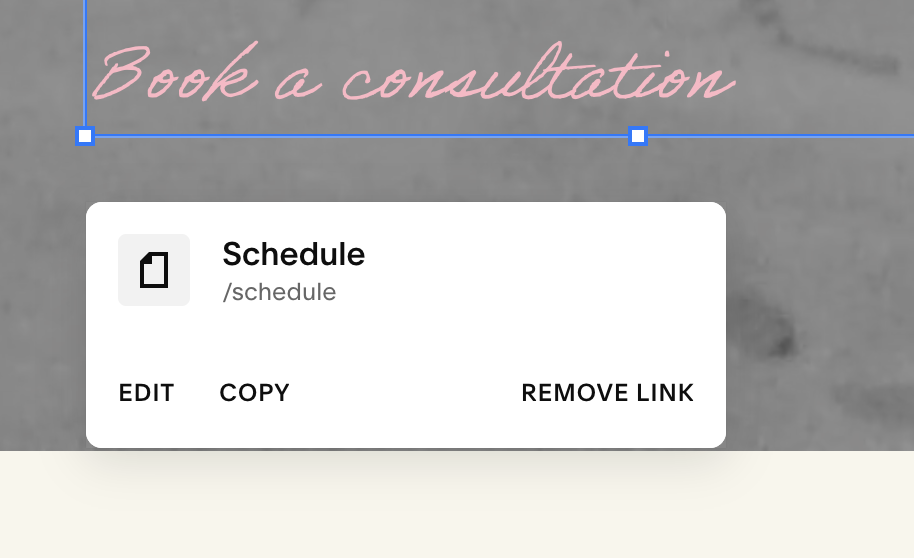
To Edit a Link: Click anywhere in the linked text → click Edit from the popup → change the destination → Exit & save your page
To Remove a Link: Select the linked text → click Remove Link → Exit & save
To Copy a Link: Select Copy and then paste onto any other text
Styling Links:
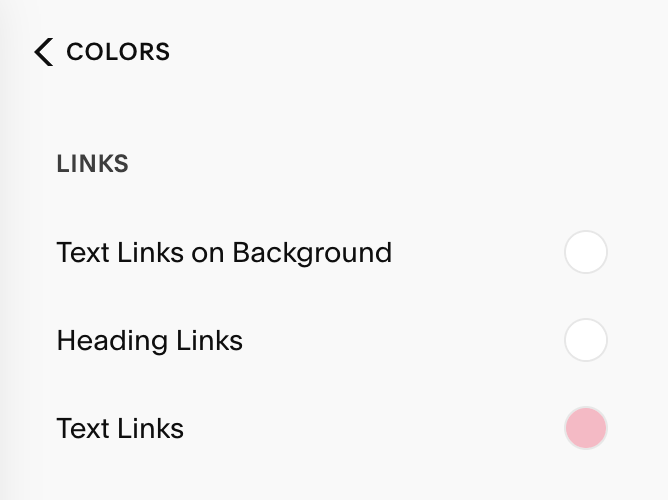
To change the color of your your text links, go to Site Styles → Colors. Choose the Color Theme of the section your link is on, and scroll down to Links → Text Links.
From there you can choose any color from your color theme, add in your own HEX, RBG, or HSL code or drag and drop to select a custom color.
Pro Tip: Because your links serve as a Call to Action, it’s important to make sure that they are legible and visible. When choosing colors for your text links, always makes sure that they are easy to read and have strong contract with your background color or image.
Quick Troubleshooting:
If your link won’t save: Make sure you clicked Apply, then Save the page.
If your file is not downloading: Re-add the link via File and confirm the upload finished before applying.