Editing Your Template
Update - January 2026:
Squarespace has recently reorganized how their block list is structured. All of the information about what each block does is still accurate, but you may notice that the blocks now appear in a different order than before.
Blocks are Now Grouped Into the Following Categories:
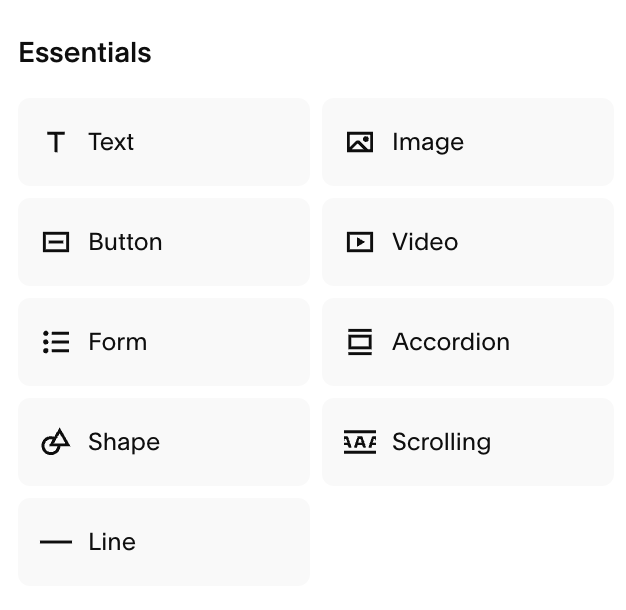
Essentials
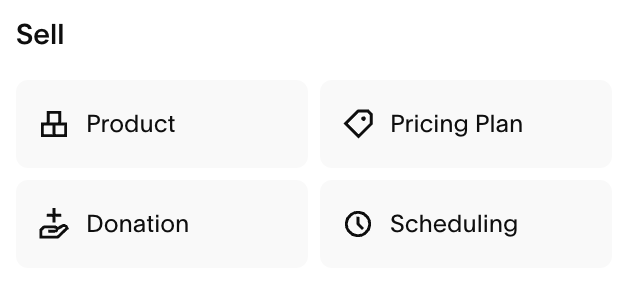
Sell
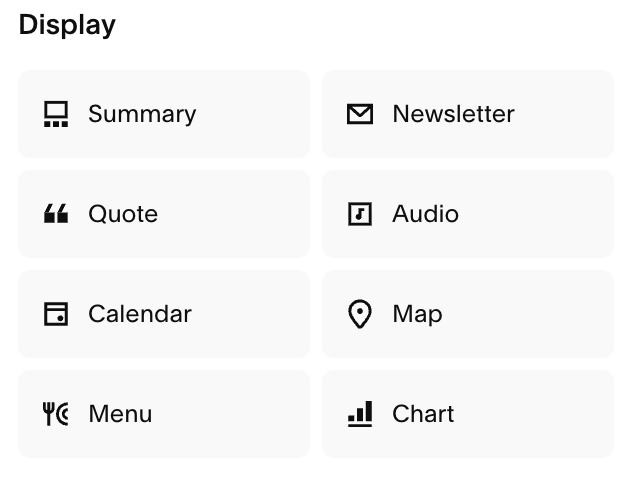
Display
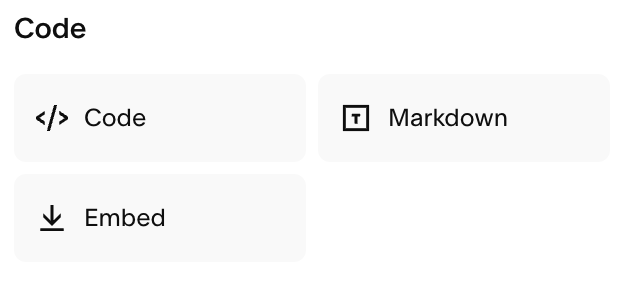
Code
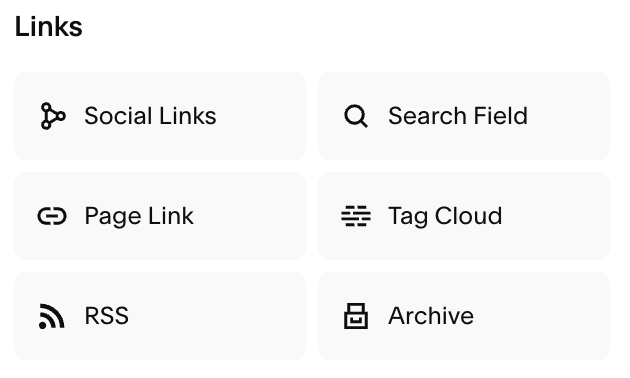
Links
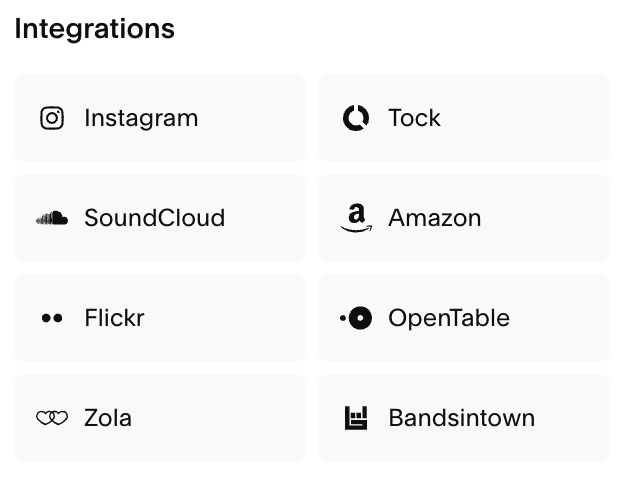
Integrations
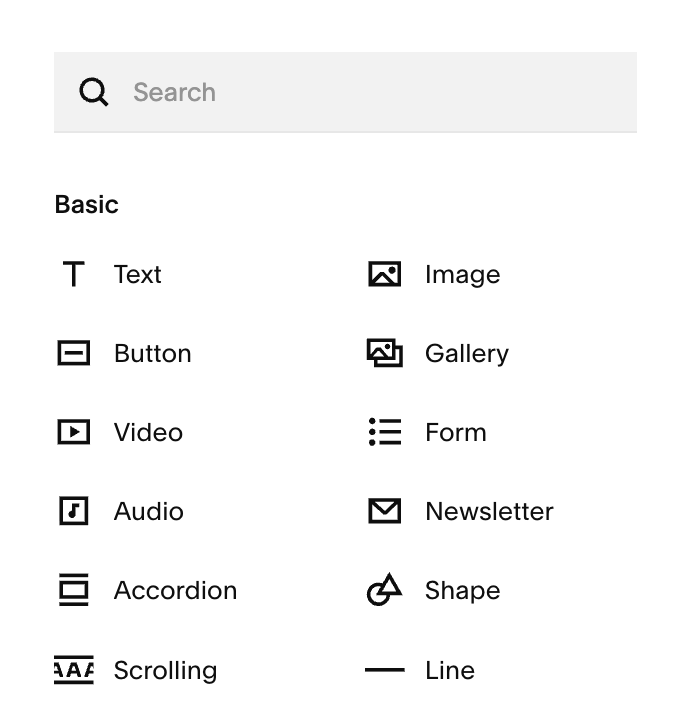
If you’re ever having trouble finding a specific block, the search bar at the top of the block menu is the quickest way to locate exactly what you need.
What are Blocks?
Blocks are drag-and-drop features that display content on your site. You'll use them to customize your pages with a variety of content, like text, images, buttons, and forms.
Types of Blocks:
Your content blocks are organized into four categories: Basic, Business, Integrations, Filters & Lists.
Below is a breakdown of the blocks in each category and what they do. To learn more about each type of block, click on the bold text!
Basic blocks: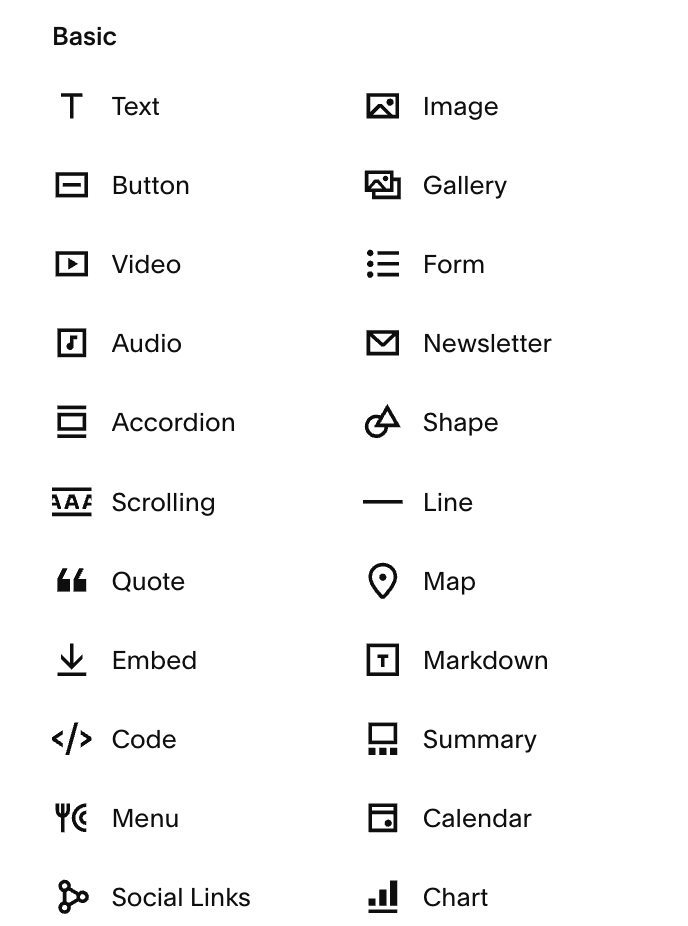
Text: Add text, including headings, quotes, pre-formatted text, links, and lists.
Button: Add buttons and calls to action.
Video: Add externally hosted videos.
Audio: Add players for audio files.
Accordion: Collapsible sections of text.
Scrolling: Add scrolling text like a marquee or news ticker.
Quote: Add styled quotations or testimonials.
Embed: Add external content with links to tweets, videos, and more.
Code: Add custom code or display code snippets. Using JavaScript and iframe code in code blocks is a premium feature.
Menu (premium feature): Display restaurant menus.
Social links: Add icons that link to social media profiles.
Image: Add images with captions in card, collage, inline, overlap, poster, or stack layouts.
Gallery: Add galleries of images or videos in carousel, grid, slideshow, or stack layouts.
Form: Add forms to collect information from visitors.
Newsletter: Add newsletter subscription forms.
Shape (Fluid Engine only): Add solid color shapes.
Line: Add horizontal lines to break up text or visually separate content.
Map: Add Google Maps with location pins.
Markdown: Add text using the Markdown language.
Summary: Display collection items from your site in carousel, grid, list, or wall layouts.
Calendar: Display items on your pages, like events, as a calendar sorted by day.
Chart: Add bar, line, and pie charts.
Business blocks: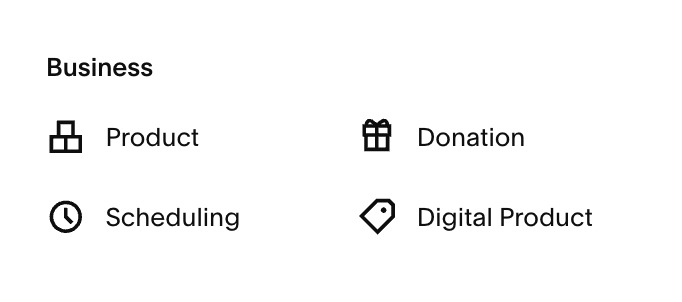
Product: Display products from store pages.
Scheduling: Add online booking with Acuity Scheduling.
Donation (premium feature) - Collect donations to your cause or organization. Requires a payment processor connection.
Digital Product: These are online products that your customers can purchase and access immediately. Digital Products include course pages, blog pages, videos pages, and member sites.
Business blocks: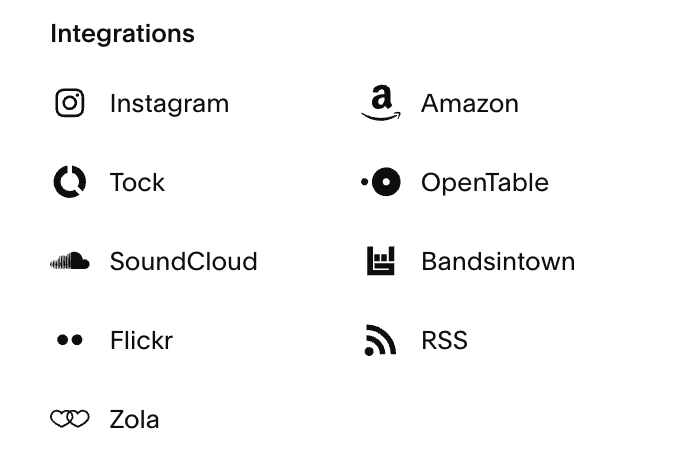
Instagram: Add live posts from your Instagram account.
Tock: Add a button for making reservations or selling tickets to events with Tock.
SoundCloud: Embed SoundCloud players.
Flickr: Add images from your Flickr account.
Zola: Add wedding registries.
Amazon (premium feature): Link to Amazon items. This is useful if you participate in Amazon's Affiliate program.
OpenTable (premium feature): Add restaurant reservation booking. You'll need an OpenTable Restaurant ID.
Bandsintown” Display tour dates from your Bandsintown profile.
RSS: Add links to blog page RSS feeds.
Filters & Lists: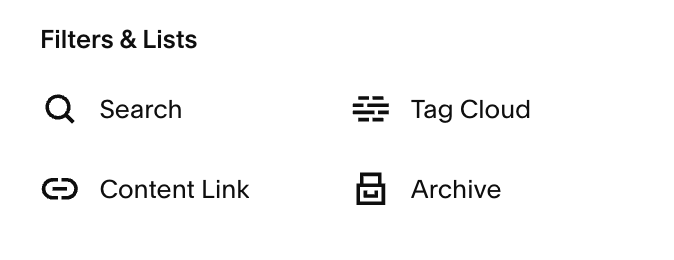
Search: Add search fields.
Content Link: Add links to other pages on your site with visual previews.
Tag cloud: Display tags or categories in a graphic cloud formation.
Archive: Display organized lists of links to collection items.