Using Sections
Saved Sections (AKA Your Biggest Time Saver):
Did you know? You can save a section you love and reuse it later on other pages. It’s a great way to keep your branding consistent and easily build new pages if you need to expand your site.
TO SAVE A SECTION:
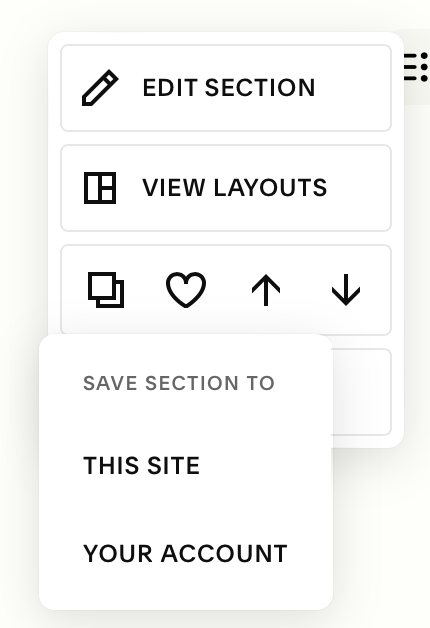
In Edit mode, click the heart icon
It will as you if you’d like to save the section to ‘This Site’
Note: You can only save a max of 50 sections
Using Saved Sections:
To use a save section simply:
Hover between the two existing sections you’d like to add your saved section to until you see the “Add Section” icon.
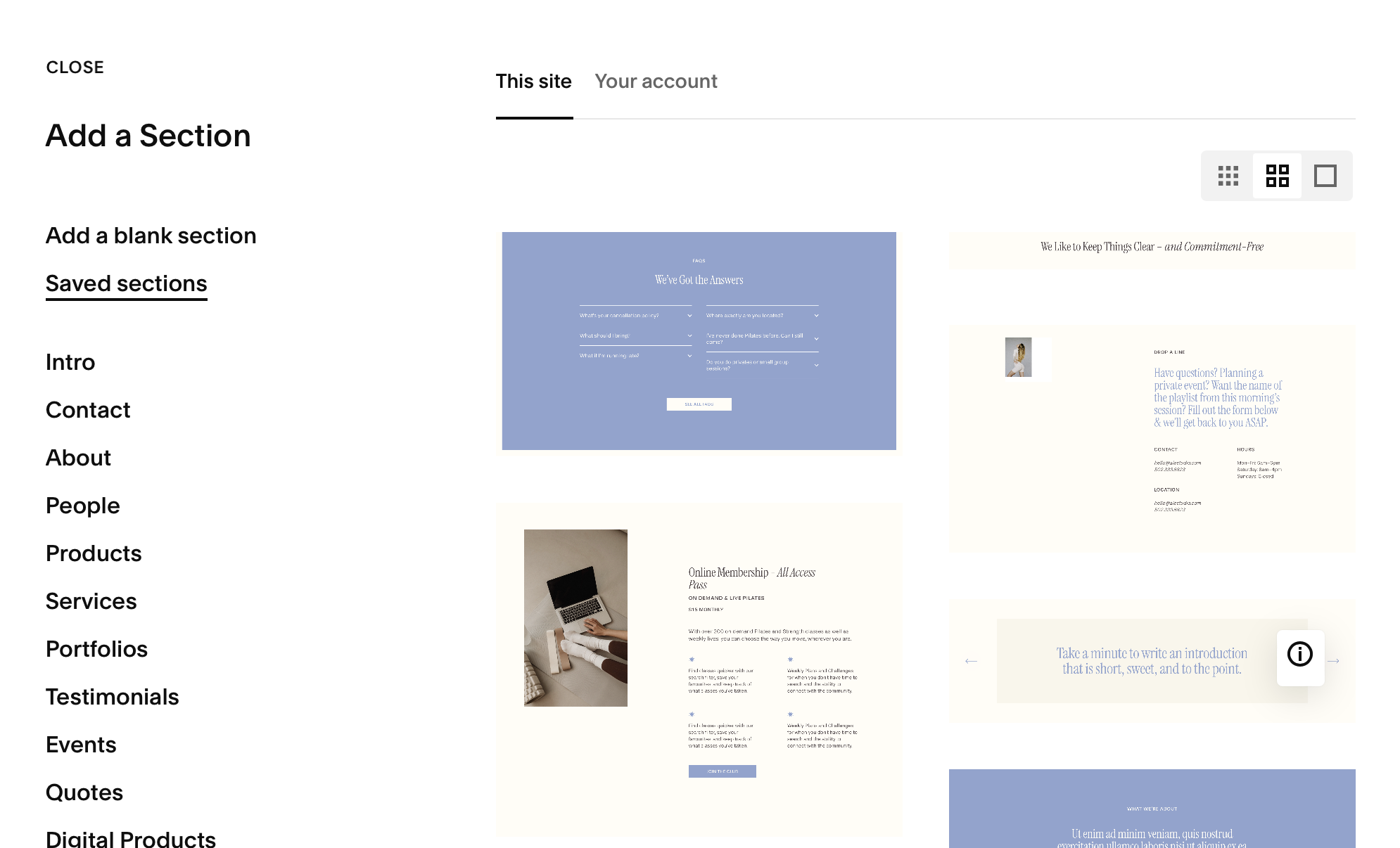
Selected ‘Saved Sections’ from the menu.
Click on the section you’d like to use and it will add itself to your page.
Deleting Saved Sections:
In Edit mode click “Add Section” on any section
Selected ‘Saved Sections’ from the menu.
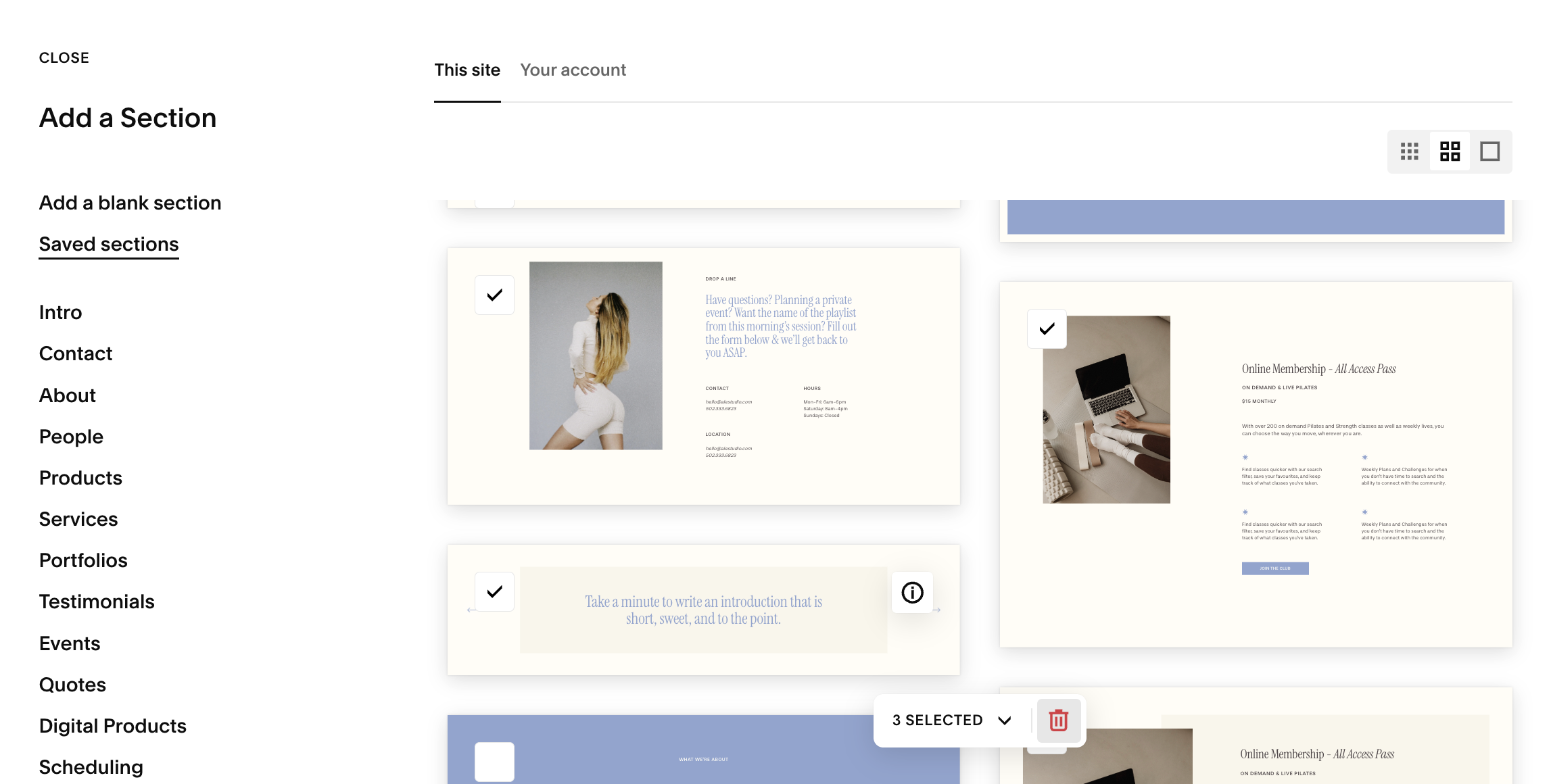
Hover over any section you’d like to delete and select the checkbox in the bottom left corner
Hit the Trash icon at the bottom of the page
Note: You can delete several sections at a time by selecting multiple checkboxes