Editing Your Template
A Text Block is the content element you use anytime you want words on your page. You’ll use it for headlines, body paragraphs, captions, lists, quotes, etc.
Because you’re using a templates, the Text Blocks are already placed for you in the design. All you’ll have to do is swap in your own words and tweak the style if needed!
How to Edit an Existing Text Block:
To update copy that’s already in place:
Click Edit on the page with the text you want to change.
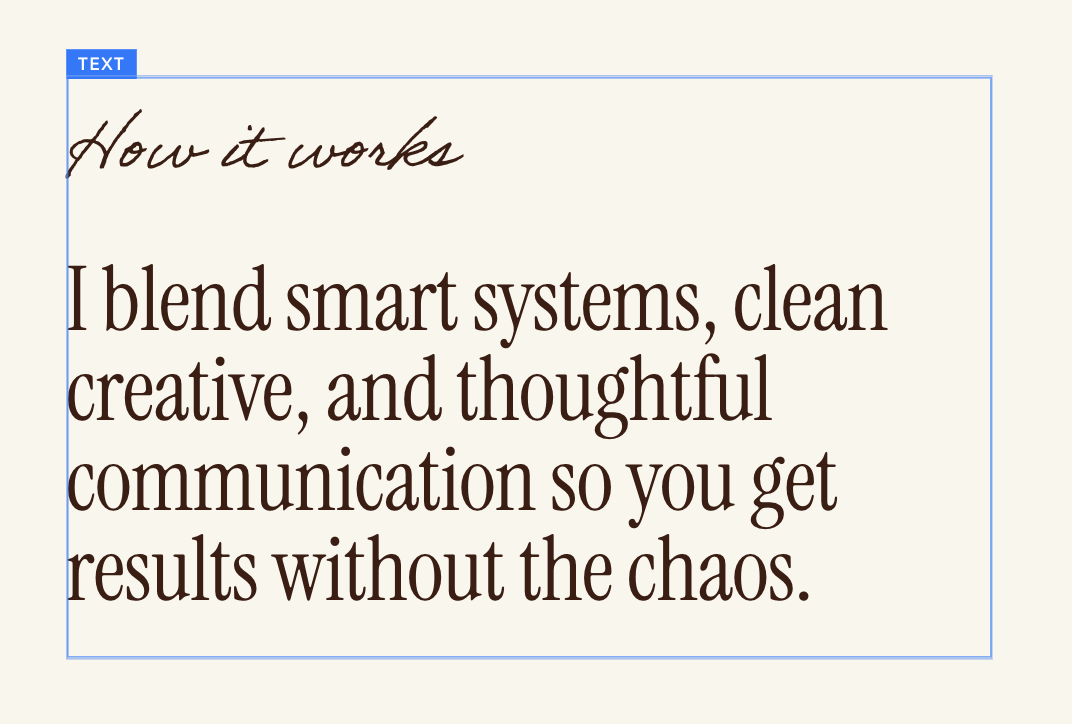
Locate the Text Block you want to change. Click inside the block (you’ll see a blue box pop up around the text when you hover over it).
Highlight or double click the section of text you want to edit
Paste in the copy you want to replace it with, or type directly in the text box.
When you’re done editing, click Save in the top left corner or the page
Styling Your Text:
Every time you edit a text block, you’ll see a menu bar pop-up with styling options for your text:

From left to right:
Squarespace AI: a generative writing assistant that uses artificial intelligence to help you generate or refine the copy on your website
Heading 1-4 / Paragraph 1-3/ Monospace: Choose the text style you want for each section of text. You’ve set all your text styles in your Page Settings Section, and using theHeadings are larger and used for titles and section headings. Paragraph is for body text or longer paragraphs.
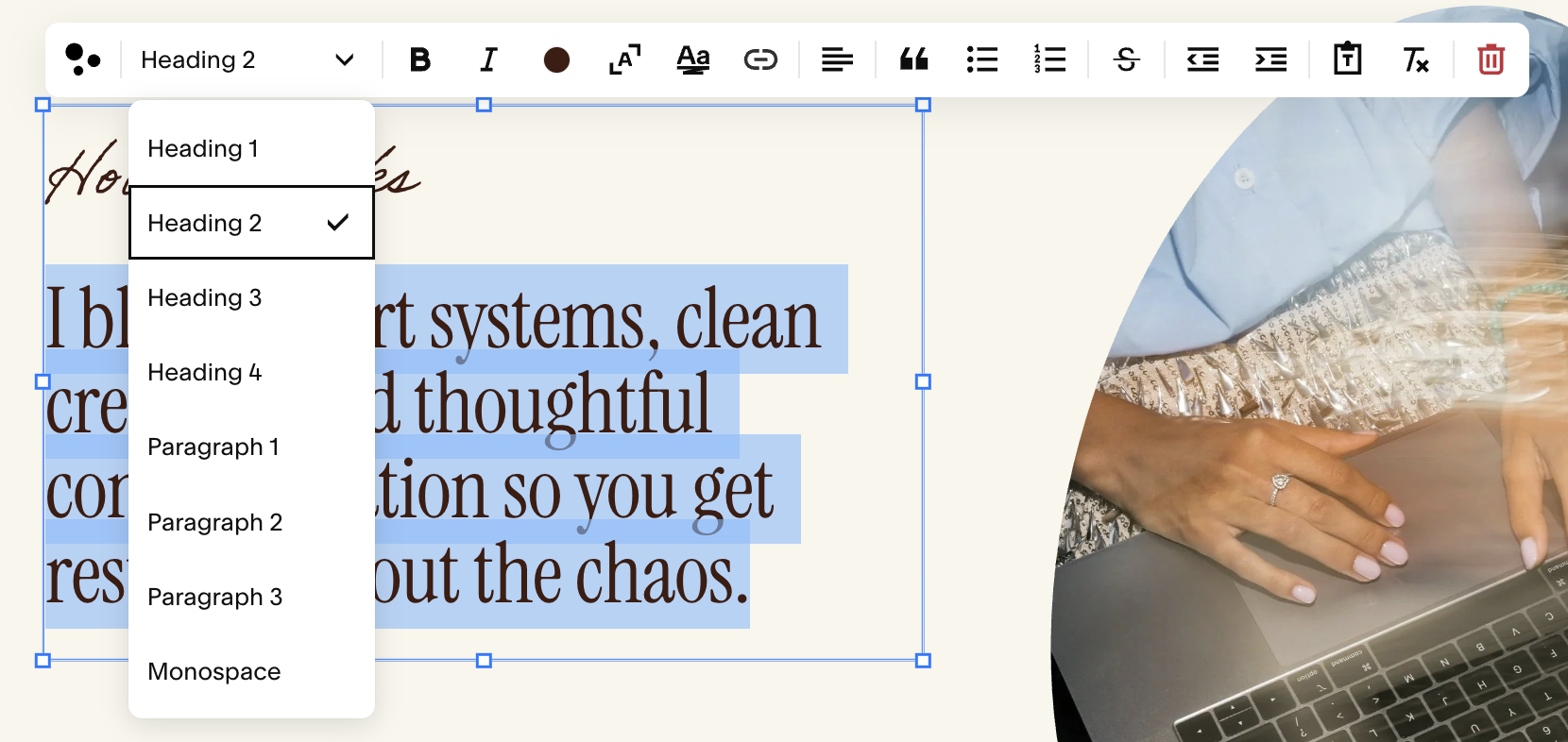
Bold (B): Makes your selected text bold.
Italic (I): Makes your selected text italic.
Text Color: opens the color menu so you can change the color of your text. Select from your color palette or add a custom color.
Scale Text: This will scale your text to the edges of your bounding box (the blue box that shows up around your text). This will make your text as big or as small as the bounding box and overrides the size settings of your selected heading or paragraph.
Highlight: Opens advanced text styling options for highlighting your text, including options like underline, circle, and strikethrough as well as highlight animations.
Link: Turn text into a link (to another page, a web address, an email address, or a file like a PDF).
Text Alignment: Controls the alignment of your text:
Align left
Center
Align right
Justify (even spacing across the line)
Quote Marks: Formats text as a block quote (indented, stylized).
Bulleted List: Creates bullet points.
Numbered List: Creates numbered list items.
Strikethrough (S with line): Adds a line through text.
Indent Left/Right:
Indent Right: Moves text inwards (useful for quotes or nested lists).
Indent Left: Moves text back to the left.
Paste as Plain Text (Clipboard Icon): Paste without formatting. This removes any styling your text had when copying.
Clear Formatting (Tx): Clears all styling from selected text (removes bold, italics, color, etc.).
Delete Block (Trash Can): Deletes the entire text block from the page. You can undo this by hitting Command + Z (or Cntrl + Z on a windows).
How to Add a New Text Block:
If you want to insert a new text area:
Click Edit on the page you want to add the text to
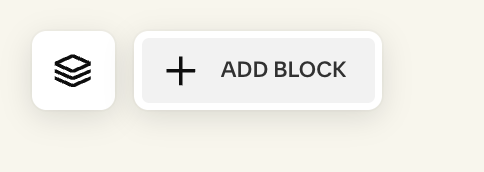
Click the section where you want the text, and select the + Add Block button in the top left corner
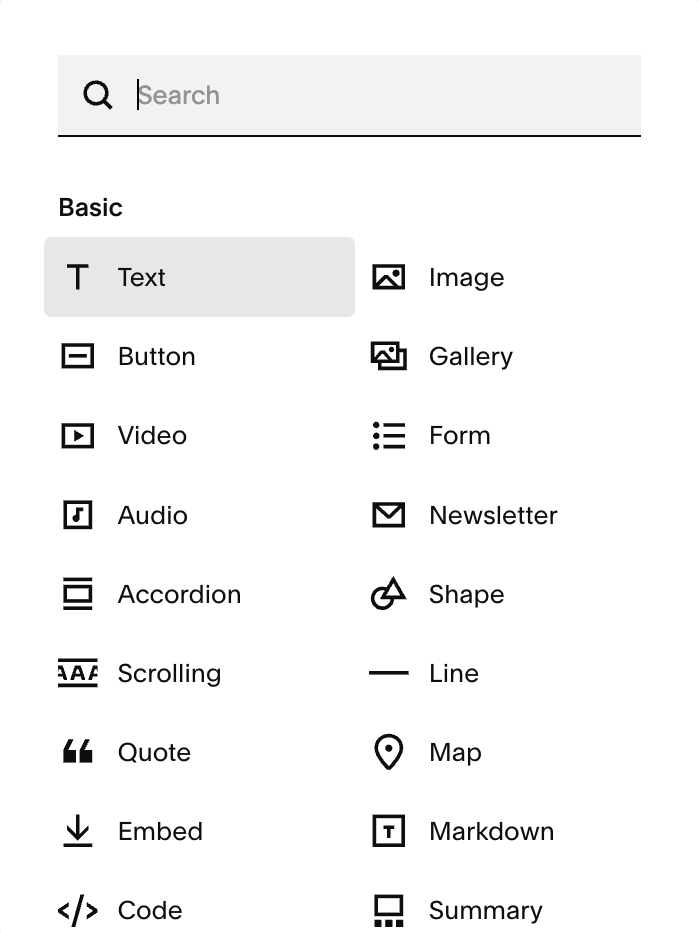
From the block menu, select Text.
A new Text Block will appear. Double-click in the box and start typing or pasting your content.
Use the formatting toolbar that appears (bold, italic, headings, lists, links etc) to style your text.
Click Save or Done (depending on your editor view) to apply changes.
Moving & Placing Your Text:
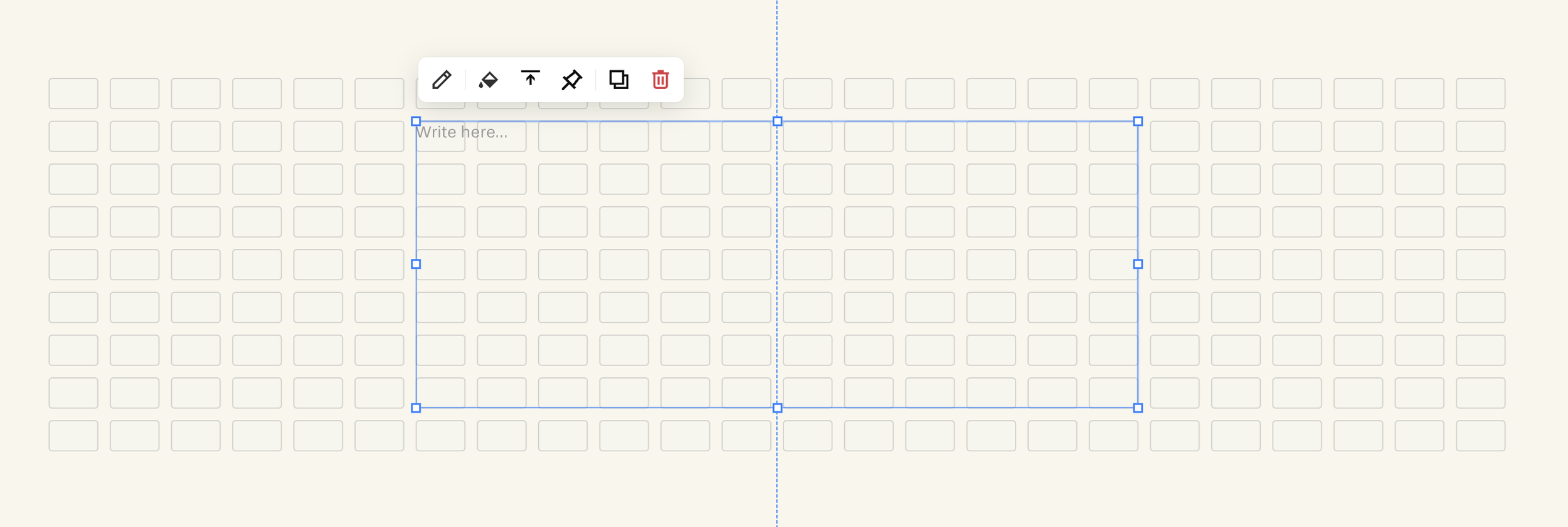
You can drag the edges of the blue bounding box to change how much of the screen your text box takes up. You can also drag your text box anywhere you’d like on your grid.
Helpful Tips:
Think of each Text Block as a “container” for a piece of your message.
Use headings to lead people and paragraphs to explain.
Lists and quotes are your friends for clarity.
Always preview on mobile to make sure your looks formatted on small screens.