Editing Your Template
What Are Pinned Blocks?
Pinned Blocks let you choose a content block (e.g. an image, text, button) and keep it visible in place while the rest of the section scrolls. So as your visitor scrolls down through a section, that one block stays fixed either at the top, center, or bottom of the viewport.
Why you might use this in your template:
To keep a call-to-action visible while someone reads long content.
To hold a brand image or key message steady while other content scrolls beside it.
To create a visually dynamic layout without needing custom code.
When You Can Use Pinned Blocks:
Your page must use a Fluid Engine section (not the older “Classic” section).
The section should have enough “scrollable space” beneath the pinned block so that the effect actually shows. If the section is very short, the block won’t appear to move.
You’ll need to set pinning separately for desktop and mobile views, if you want consistent behaviour. Pinned blocks do not automatically carry over from desktop to mobile.
How to Pin a Block:
Open the page in Edit mode in Squarespace.
Scroll to the section where you want the pinned block.
Click the block you’d like to pin (image, text, button, etc.).
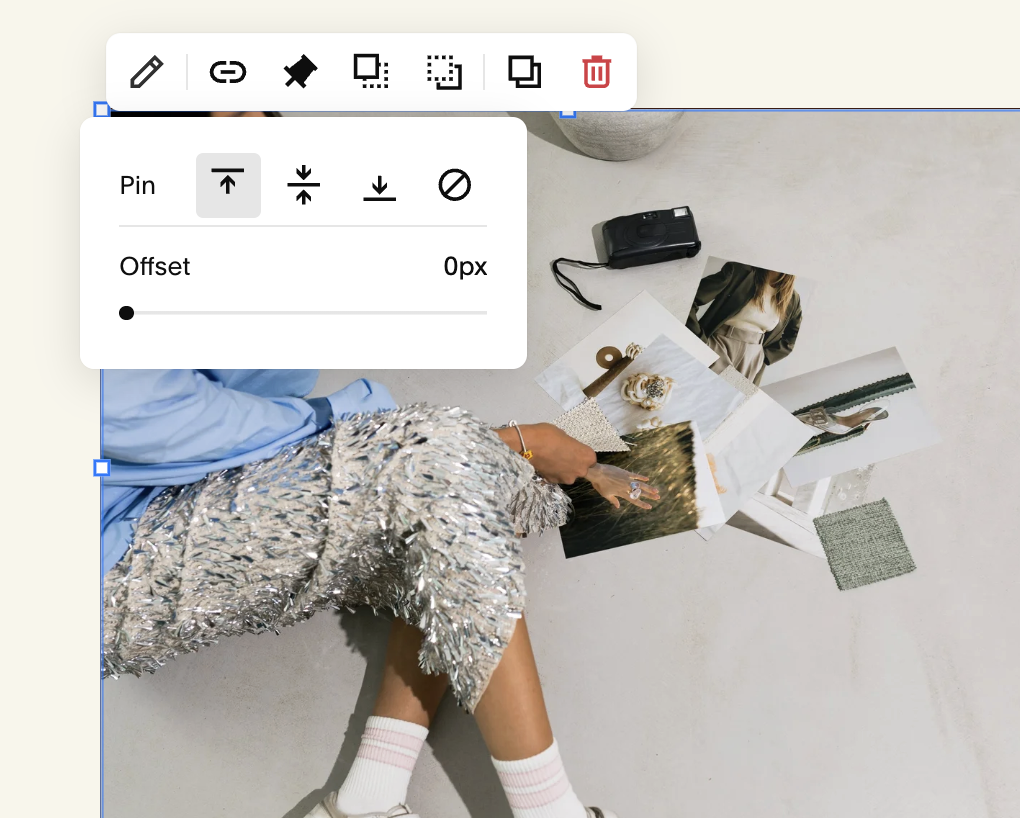
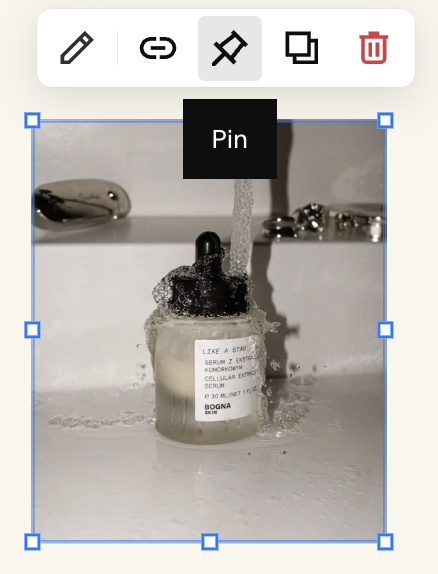
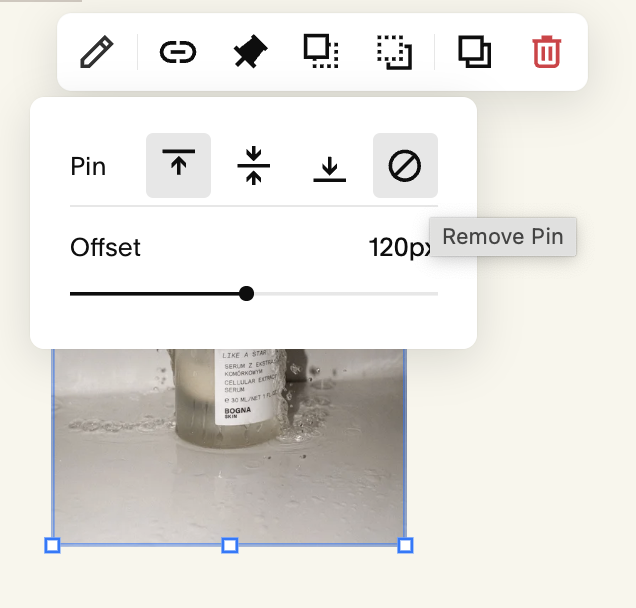
In the block toolbar, click the thumb-tack (pin) icon.
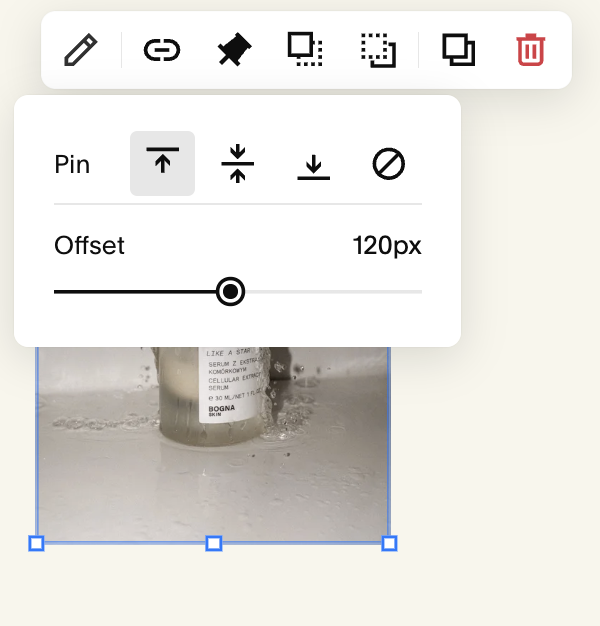
Choose the pin position:
Pin to Top – the block stays at the top of the screen while scrolling.
Pin to Center – the block stays in the middle of the viewport.
Pin to Bottom – the block stays at the bottom of the screen while scrolling (the block must be originally placed near the bottom of the section for this to work).
Adjust the Offset Amount (optional): this adds spacing above or below your pinned block so it doesn’t touch the very edge of the screen.
Preview or save the page, then view it on different screen sizes (desktop + mobile) to check how it behaves.
→
Unpinning a Block:
If you ever need to unpin a block: Click the block → pin icon → select Remove Pin.
Common Things to Watch:
Because the block stays fixed in view, moving it around in the editor can feel a little tricky: you’ll see a blue outline for its grid position that’s what really matters.
If you pin a block but the section is too short (not enough scrollable space beneath it), the effect won’t show properly. Make sure your section has enough content below the pinned block.
Even if you pin a block in desktop view, you should check mobile separately and apply pinning if desired. The layout may need adjustments.
Be mindful of page performance: If you pin many blocks or have complex layouts, test your site’s speed and scrolling experience